

How to Annotate a PDF Form Without Printing
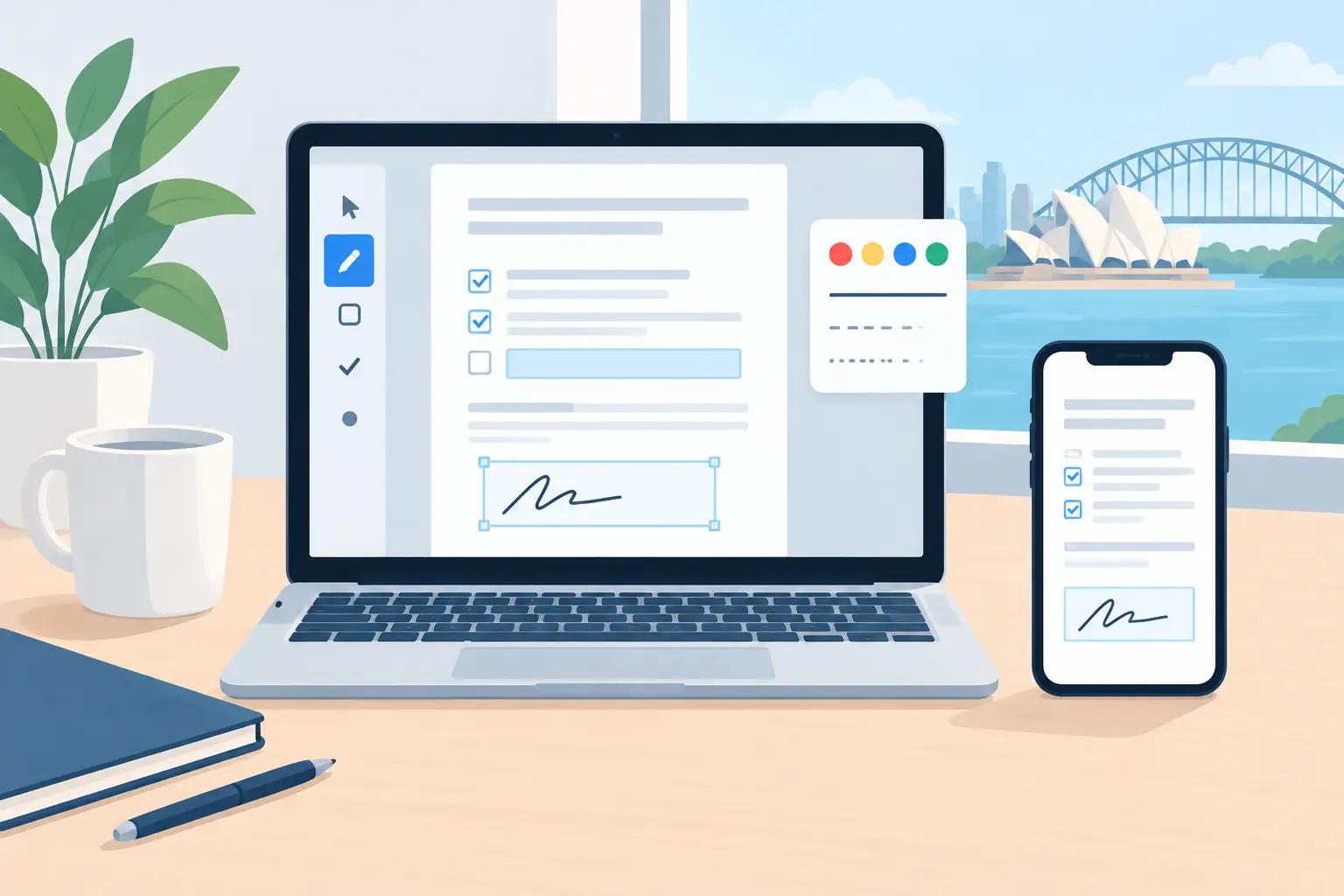
A PDF form can look finished before you have added a single word. That is the frustration when you need to annotate a PDF form quickly: the document opens, but the fields will not accept typing, a note needs to sit beside a question, or you need to mark something for another person to review. Printing, handwriting and scanning it back in is one option, but it is rarely the quickest one.
Annotating a PDF means adding information on top of the original document. Depending on what the form needs, that may be typed text, a tick, a highlight, a comment, a date or a drawn mark. The aim is simple: make the document clear and usable while keeping the original layout intact.
When to annotate a PDF form rather than edit it
Some PDFs have built-in fillable fields. You can click into a box, type, choose an option or tick a checkbox. Others are flat PDFs, which are more like a digital image of a printed page. They may look like forms, but they do not respond when you click the lines or boxes.
If the document is already fillable, use its existing fields where possible. They are usually positioned to match the form and make the finished page easier to read. Annotation tools are useful when there are no active fields, when you need to add a brief note, or when a person reviewing the form needs to see a highlight or comment.
There is a practical trade-off. Annotations are ideal for completing or reviewing a document, but they do not change the wording of the original PDF. They also do not tell you what an official form is asking for or whether a response is correct. Read the instructions provided with the form before you begin.
The easiest way to annotate a PDF form
Start with a clean copy of the PDF. Save the original somewhere you can find again, particularly if it is a document you may need to complete more than once. Then open the copy in a browser-based PDF tool or PDF app that lets you place text and marks directly on the page.
Add text where the form needs it
Choose a text tool, click near the relevant line or box, and type your information. Adjust the text size before moving on. Small text can be difficult to read after printing, while oversized text can cover nearby labels or run outside the box.
For forms with several sections, complete one page at a time. This reduces the chance of putting text in the wrong place and makes it easier to spot gaps before you save. If the form has narrow fields, use short entries only where the form allows them. Do not squeeze a full answer into a space that is clearly intended for a short response.
Use ticks, circles and highlights with restraint
A tick can show a selected option. A circle can draw attention to a section that needs review. Highlights can help a colleague locate key information on a working copy. Each mark should have a clear purpose.
Too many highlights and shapes make a form harder to follow. If you are sending a PDF to someone else for review, use one consistent colour and keep comments close to the relevant question. Before downloading, check that no temporary notes or draft markings are left behind.
Add comments when the PDF is being reviewed
Comments work best when the form is moving between people, such as an admin worker preparing a document for a manager or a property team checking an application pack. Keep each comment specific: point to the exact item, state what needs attention, and avoid vague notes such as “please check”.
A comment is not always appropriate for the final version. If the recipient needs a completed form rather than a review copy, remove comments unless they have asked you to leave them in.
Keep the layout readable
The hardest part of annotating a PDF is often not entering the information. It is keeping it aligned with the page. A form may have faint lines, tightly spaced questions or small checkboxes, especially if it was originally designed to be printed.
Zoom in before placing text. Position it so it sits inside the intended space without covering instructions, page numbers or other printed content. Then zoom back out and review the whole page. A mark that looks fine at 200 per cent can appear misplaced when viewed at normal size.
Use the same font size and style throughout where you can. Consistency makes a completed PDF easier to scan, whether you are printing it for your records or emailing it to another person. It is also worth checking each page at the end, not just the pages where you added text. Some forms have declarations, signature areas or notes on the final page that are easy to miss.
Save, download and check the finished PDF
Once you have finished annotating, save or download a fresh copy with a clear file name. Include the document name and date if that helps you tell versions apart. Avoid vague names such as “form final final”, especially if several people may handle the file.
Open the downloaded PDF before sending it anywhere. Check that the text, ticks and notes appear where you put them. This matters because some PDF viewers display annotations differently, and a simple review can catch a missing page, a shifted text box or an unfinished comment.
If the document needs a handwritten signature, printing may still be necessary. In that case, complete the parts you can digitally first, print the finished copy, sign it if required, and follow the form’s official instructions for the next step. If an electronic signature is accepted, check the instructions from the organisation receiving the form rather than assuming every PDF uses the same process.
Common problems when annotating forms
A PDF that will not accept typing is not necessarily broken. It may be a flat document with no active form fields. Use a text annotation tool rather than repeatedly clicking the printed lines.
Text that disappears after saving can happen when a tool has not finalised the annotation. Download the completed version and reopen it to confirm your additions are visible. If the document is password-protected or restricted, you may not be able to annotate it at all. In that situation, contact the organisation that supplied the form or request another version.
Another common issue is using a mobile for a form that has many small fields. A mobile can be convenient for a quick note or a single-page document, but a larger screen often makes positioning text more accurate. It depends on the form and how much you need to add.
A practical option for Australian PDF paperwork
For everyday Australian paperwork, the goal is usually not advanced document editing. You need to open the PDF, type clearly, make a few necessary marks, preview the result and keep a readable copy. That is where a focused form-filling tool can be more practical than printing pages or learning a large desktop program.
QuickFill is designed for that workflow. Open QuickFill and complete your form, then review every page before you download the finished PDF. Free to fill and preview. Pay only when you download.
General guidance only. QuickFill helps you complete PDF forms, but it is not an official government service and does not provide legal, financial, medical, tax, tenancy, migration, Centrelink, Medicare or benefits advice. Always check the official instructions for important forms.
A neat annotation is useful only if the final document is easy for the next person to read. Take an extra minute to review the placement, remove draft notes and keep a copy of the completed PDF for your records.