

Are PDF Forms Editable? What You Can Change
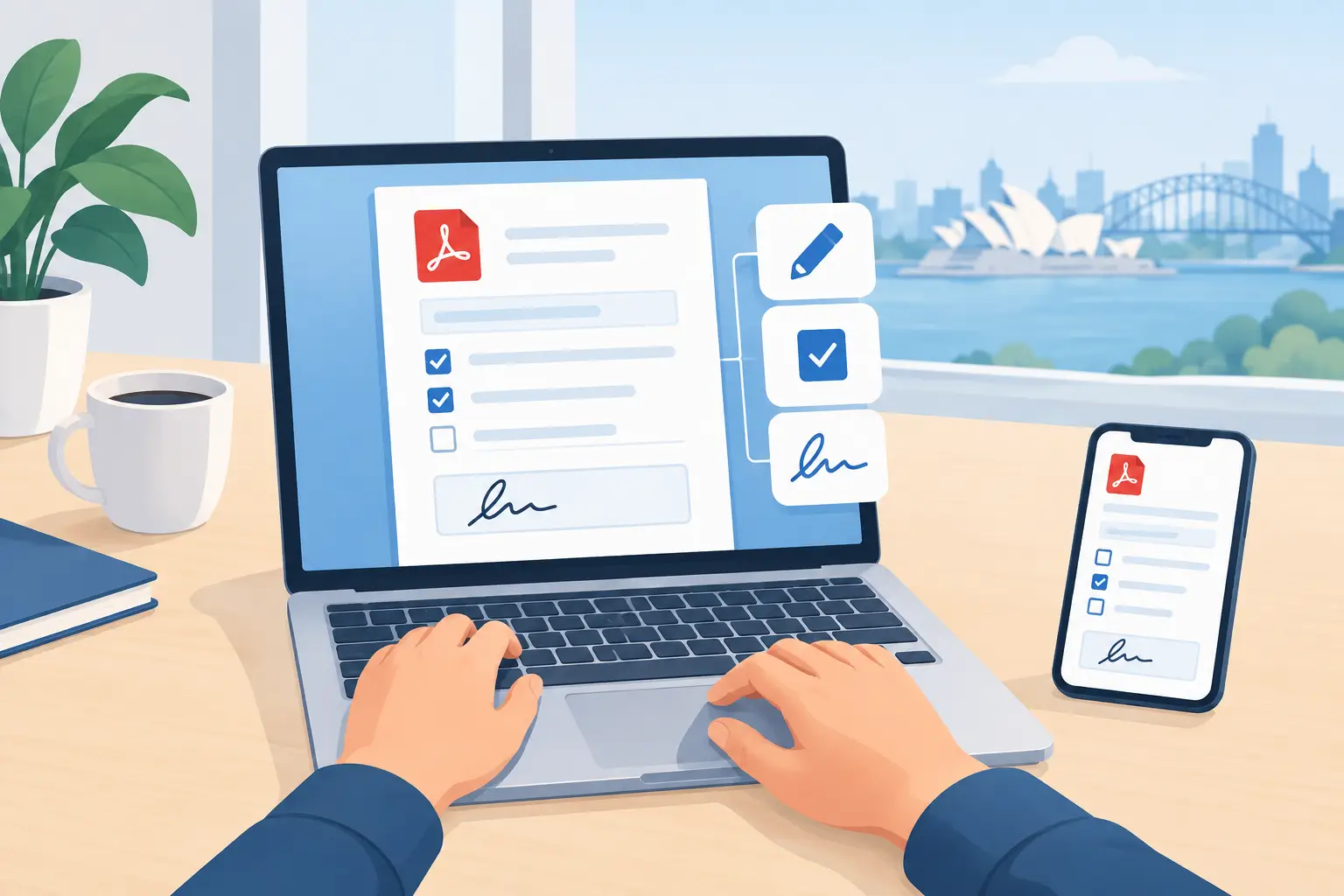
A PDF can look like a form and still refuse to let you type a single word. That is why the question, are PDF forms editable, has more than one answer. Some PDFs include fillable fields built into the document. Others are simply digital copies of paper forms, with no editable areas at all.
The useful distinction is not whether the PDF opens on your mobile or computer. It is whether you can add text where you need it, save a clear completed copy, and prepare it for printing or sending. For Australians dealing with rental paperwork, workplace documents, medical consent forms, council forms or small-business admin, that difference can save a trip to the printer and scanner.
Are PDF forms editable? It depends on the PDF type
PDFs are designed to keep a document’s layout consistent. That is handy when a form needs to look the same on different devices, but it does not automatically make the content editable.
A fillable PDF has interactive fields. You may see boxes that highlight when selected, tick boxes that respond to a tap, drop-down menus, or areas where the cursor appears. These fields are part of the file, so you can generally type directly into them using compatible PDF software.
A flat PDF is different. It may be a scanned paper form or a document exported as an image-based page. It can have lines, boxes and labels that look ready to complete, but there are no active form fields underneath. Selecting a space may only highlight the page or do nothing at all.
There is also a third situation: a PDF may contain fields, but they are restricted. The creator may have locked certain parts, used a format that does not work well in your current viewer, or set permissions that prevent editing. In those cases, the form is not necessarily unusable, but typing directly into the original fields may not be possible.
How to tell whether a PDF is fillable
You do not need technical knowledge to make a quick check. Open the document and tap or click in a blank area where an answer belongs. If you see a blinking cursor, a highlighted box or a menu, the form is likely fillable.
On a computer, moving your mouse over a field may also change the pointer. On a mobile or tablet, tapping a field may bring up the keyboard. Tick boxes should react when selected rather than behaving like part of a static image.
If nothing happens, try another viewer before assuming the form is locked. Some browser viewers display PDFs well but have limited support for interactive fields. A downloaded file can behave differently when opened in dedicated PDF software.
A common sign of a flat PDF is that every part of the page selects as one large object. Another is that the form appears to be a scan, complete with slightly uneven text or grey paper texture. In that case, you need a tool that lets you place text on top of the PDF rather than relying on its existing fields.
Editable fields and adding text are not the same thing
This is where many people get stuck. They assume a non-fillable PDF must be printed, handwritten and scanned back in. Often, it does not.
Editing an existing PDF usually means changing the original text, layout or built-in form fields. That can be limited, especially for official-looking forms that should keep their original wording and structure intact.
Completing a PDF is simpler. You keep the document as it is and add your details in the appropriate spaces. For a flat PDF, that may mean placing a text box over the answer line, adding a tick or inserting a date. The end result can be a clean PDF prepared digitally, without changing the source form itself.
That distinction matters for routine paperwork. If a form asks for your contact details, employment information or property application details, you usually need a practical way to enter information clearly, not a full document redesign tool.
Why some PDF forms seem locked
A form can feel locked for several reasons. The original file may be a scan. Its interactive fields may only work in particular PDF readers. The creator may have set editing restrictions. Or the file may have been flattened after it was completed, removing the editable fields while preserving its appearance.
Flattening is common when a completed document is saved for sharing. It turns entered text and ticks into part of the page, helping the completed version look consistent when opened elsewhere. The trade-off is that making later changes can be harder.
Password protection is another possibility. A PDF may ask for a password to open, print or edit it. If you do not have the password or permission to make changes, the sensible option is to contact the person or organisation that supplied the form. Trying to bypass restrictions can create a document that is incomplete or unsuitable for its intended process.
A practical way to complete PDF forms online
For a form that already has active fields, start by checking each section on the device you plan to use. Type into the fields, review the layout and save a copy before sharing it. If a field is too small or text runs outside the box, another viewer or a different device may display it more clearly.
For a flat form, use a PDF form-filling tool that lets you add text and marks to the page. Keep the original form wording visible and position your entries carefully. Zoom in for smaller fields, especially on a mobile, and review every page before downloading.
QuickFill is designed for this everyday task: opening a PDF, typing onto it and preparing a completed copy without printing and scanning first. Free to fill and preview. Pay only when you download.
Whatever tool you use, give yourself a final document check. Confirm that text is readable, no entries cover labels or instructions, and all pages are included. Save the finished PDF with a clear filename so you can find it later, such as “rental-application-completed” or “employee-details-october”. Avoid putting unnecessary personal details in the filename.
What you can usually change, and what you should leave alone
Most PDF completion tools can help you add text, dates, ticks and sometimes signatures where the document allows or requires them. You may also be able to move or resize text so it fits a field neatly.
What you should not assume is that every PDF can be rewritten. Changing official instructions, altering terms, removing pages or editing pre-filled wording can change the document’s meaning or make it unsuitable for its intended use. If a form needs correcting after it has been completed, it is often better to return to a clean copy and complete it again rather than trying to patch over old text.
The same care applies to signatures. Some forms accept typed or inserted signatures, while others may specify a particular signing method. Check the instructions supplied with the form before you send it. A PDF tool can help prepare the document, but it cannot tell you what a receiving organisation requires.
Common problems when filling PDFs
Text that disappears after saving is usually a viewer compatibility issue. Downloading and reopening the completed PDF before sending it can help you spot this early. If text appears too large, reduce the font size or use a tool that lets you adjust the text box.
If the form will not open, the file may be damaged, password-protected or incomplete. Download a fresh copy from the source where you obtained it, then try again. If only one field will not accept text, it may be deliberately restricted or configured incorrectly by the document creator.
For long forms, complete one section at a time and save your progress where your chosen tool supports it. Rushing through a 12-page form on a phone screen makes it easy to miss a page, a tick box or a small text area.
Before you download, print or email the form
A final review is worth the extra minute. Read the PDF as the recipient will see it, rather than only checking the fields you typed into. Look for clipped text, missing entries, stray marks and blank pages.
If you need a paper copy, print from the finished PDF rather than from a browser preview where possible. If you are emailing it, attach the completed file and open the attachment once to make sure it is the correct version. Keep the original blank PDF separately in case you need to start again.
General guidance only. QuickFill helps you complete PDF forms, but it is not an official government service and does not provide legal, financial, medical, tax, tenancy, migration, Centrelink, Medicare or benefits advice. Always check the official instructions for important forms.
A PDF does not need built-in fields to be useful digitally. Once you know whether you are working with a fillable, flat or restricted file, you can choose the right way to add your information and prepare a clear copy without turning paperwork into a printing job.