

Best Way to Fill PDF Paperwork Without Printing
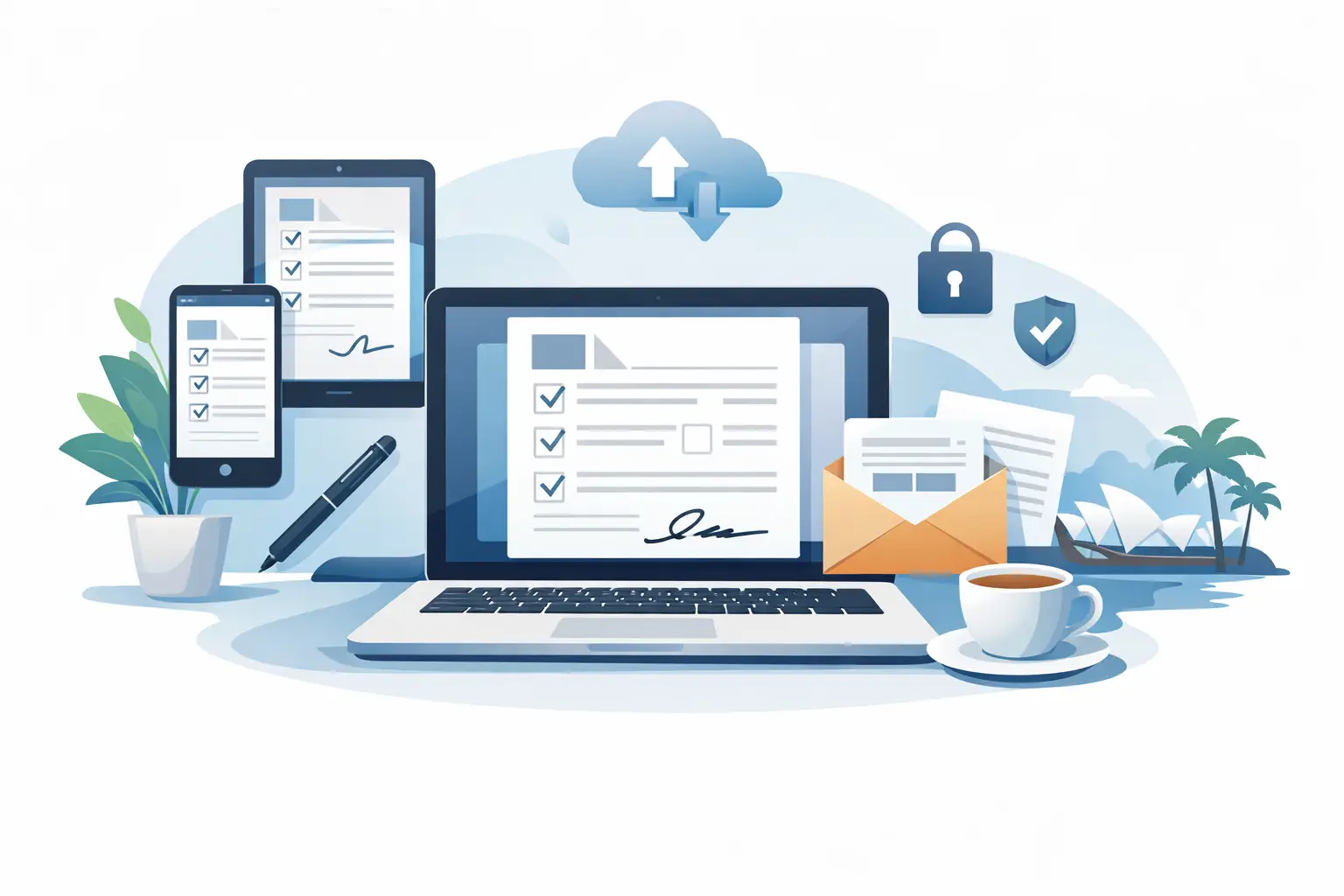
A PDF arrives in your inbox, needs to be returned today, and the only practical option seems to be printing it, writing by hand, then scanning it back in. That old routine is exactly why people look for the best way to fill PDF paperwork. For most everyday forms, the simpler approach is to open the PDF in a form-filling tool, type clearly into the document, review every page, then save a finished copy ready to download, print or email.
That sounds straightforward, but PDFs behave differently. Some have ready-made fields you can click into. Others are flat documents that look like forms but cannot be typed into without adding text yourself. Knowing the difference helps you choose a workflow that is fast without becoming careless.
The best way to fill PDF paperwork starts with the PDF type
Before entering anything, open the document and check whether its fields are interactive. A fillable PDF usually lets you click in a box, move between fields with the keyboard, tick checkboxes and select options. If that works, complete each field directly and use the tab key to move through the form in order.
Many official, business and community forms are not truly fillable, even when they contain lines and boxes. They are simply a fixed page layout. In that case, use a PDF form-filling tool that lets you place text over the correct spaces. Take a moment to adjust the text size and position before continuing. A neat, readable form is easier for the person receiving it to work with than one where text overlaps borders or runs off the page.
For a single simple form, the built-in PDF viewer on your computer may be enough. If you regularly complete rental applications, claim forms, registrations, declarations or client paperwork, an online tool can be more practical. It keeps the task in one browser workflow instead of sending you between printing, desktop software and a scanner.
Use a clean, repeatable PDF workflow
The quickest way to complete paperwork is not to rush the entry. It is to remove the avoidable steps around it. Start by saving the original PDF with a clear file name so you always have an untouched version available. Then open a working copy and enter the information you have already confirmed from your own records or the form's instructions.
Work from top to bottom where possible. This makes it less likely that you will miss a second page, a small declaration box or a field near the end of the document. On a mobile, zoom in before placing text. On a computer, use the page thumbnails to check how many pages the form contains.
When you finish entering text, do a visual review rather than only rereading the words. Check that names are not cut off, dates sit within their boxes, checkmarks appear where intended, and text has not shifted onto the wrong line. This is particularly useful for flat PDFs, where text placement is manual.
Then save or download the completed version using a name that makes sense later. Including the document type and date is often enough. If you need a paper copy, print the final PDF rather than printing a partly completed version. If it needs to be sent electronically, attach the saved final file, not the original blank document.
When typing is better than handwriting
Typing into a PDF is usually the better option when readability matters, when the form has several pages, or when you need to keep a copy of what you prepared. It also avoids the familiar cycle of finding a printer, replacing ink, scanning pages and hoping the scan is legible.
It is not always the right option, though. Some forms may specifically require a handwritten signature, a witness, supporting documents or a particular method of return. A form may also need to be printed because its instructions say so. A PDF tool can help you prepare the document, but the form's own instructions decide what is required after that.
If a form has a signature area, do not assume a typed name or drawn signature will be accepted. Check the instructions from the organisation receiving the paperwork and use the method they specify. The same applies to copies, certifications, attachments and submission methods.
Avoid the common PDF paperwork traps
The main frustration with PDF forms is often not the form itself. It is using the wrong tool or saving the wrong version. A few small habits prevent most of these problems.
First, do not type over the original unless you have a backup. Second, check the completed PDF after saving it. Some PDF viewers display added text differently, so reopening the saved file is a worthwhile final check. Third, keep the page layout unchanged unless the recipient has asked for a different format. Converting a form into a word processing document can disturb tables, boxes and page breaks.
Be careful with autofill too. It can save time on repeated contact details, but it cannot tell whether a particular field expects a different format or whether information is current. Read the label beside each field and compare your entry with the form's instructions.
For businesses and admin teams, a consistent naming routine also saves time. Rather than leaving files as “download.pdf” or “final final”, use names your team can recognise at a glance. This makes it easier to find the right version when a client, colleague or organisation asks for it later.
A practical approach for regular paperwork
People who complete forms often do not need a huge document suite. They need a reliable way to open a PDF, place text accurately, make basic edits, save a copy and move on. That is especially true for sole traders, real estate teams, healthcare and community service staff, and small business administrators balancing paperwork with the rest of the day.
A browser-based form-filling workflow is useful when you switch between a work computer and a mobile, or when a PDF arrives while you are away from the office. It also helps when a document is not fillable in the usual sense. Instead of handwriting around a printed page, you can prepare the PDF while keeping its original layout intact.
QuickFill is designed for that everyday job: completing PDF forms without the printing and scanning detour. Open QuickFill and complete your form, then review the finished document before you download, print or email it.
Check the instructions before you send anything
Completing the PDF is only one part of the task. Before sending it, check the receiving organisation's instructions for where and how to return the form, whether supporting pages are needed, and whether a signature or printed copy is required. Keep a copy of the completed PDF and any confirmation you receive after sending it.
General guidance only. QuickFill helps you complete PDF forms, but it is not an official government service and does not provide legal, financial, medical, tax, tenancy, migration, Centrelink, Medicare or benefits advice. Always check the official instructions for important forms.
The best paperwork workflow is the one that leaves you with a clear, readable PDF and a copy you can find again. Once printing and scanning are no longer the default, routine forms become one less thing competing for your time.