

Bookkeeper PDF Workflow Example for Monthly Admin
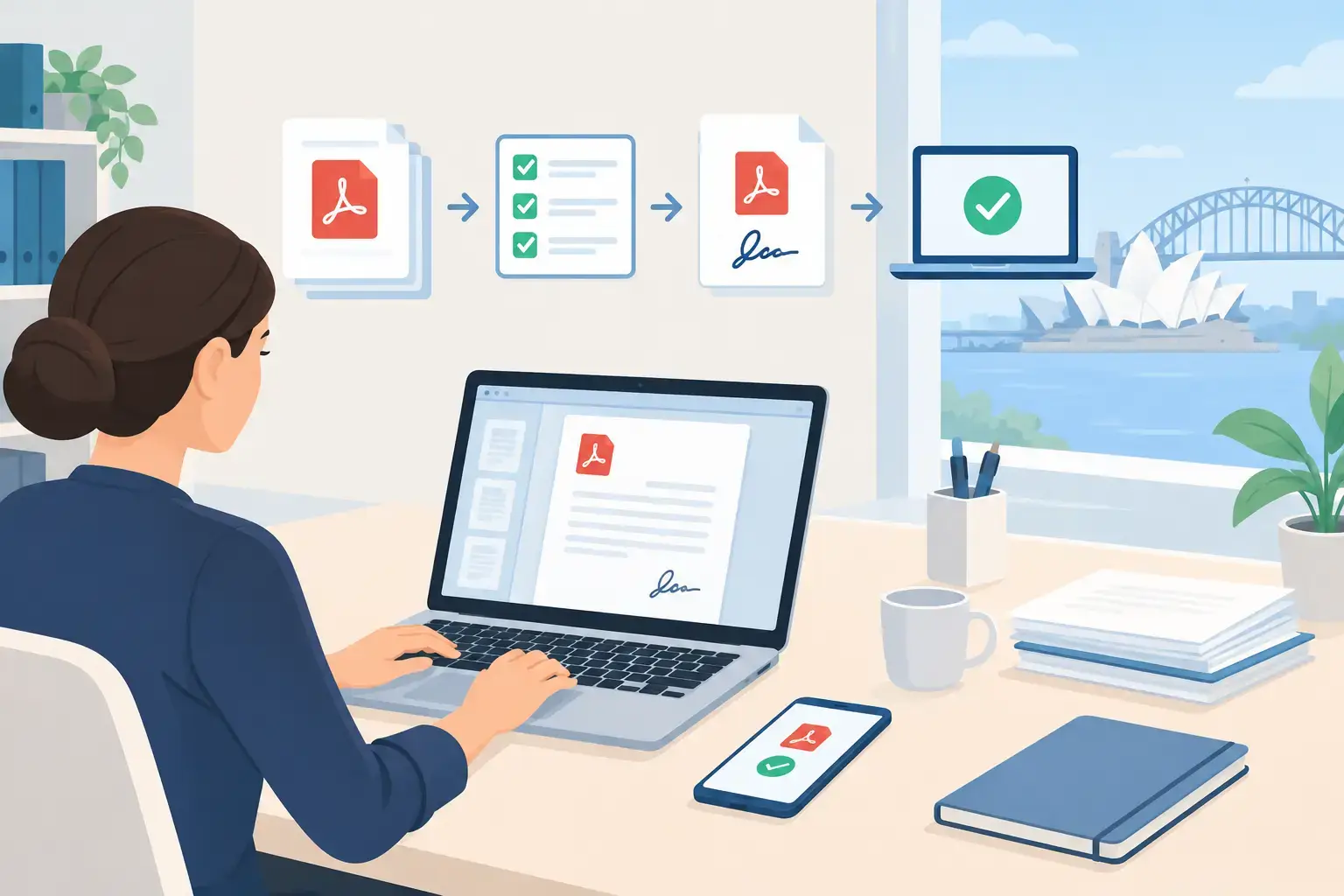
A bookkeeper PDF workflow example is most useful when the month is already busy: supplier paperwork has arrived in different formats, a client needs a tax invoice prepared, and a signed form is sitting in an email thread waiting to be filed. The goal is not to turn PDFs into another system to manage. It is to move each document from received to ready, with a clear record of what happened.
For many Australian small businesses, the friction is not the bookkeeping platform. It is the paperwork around it. A PDF might be locked for typing, built as a print-only form, or returned with handwriting that is difficult to read. Printing, writing, scanning and emailing it back creates extra versions and slows down a task that should take minutes.
This example shows a practical PDF workflow for a bookkeeper or admin worker. It focuses on preparing documents, not deciding what information belongs on a form or whether a document meets official requirements.
A bookkeeper PDF workflow example in practice
Imagine a bookkeeper is completing the regular admin for a small trade business. On Monday morning, they have received several supplier invoices, an internal expense approval PDF and a request to prepare a customer tax invoice. The required figures and wording have already been supplied or approved by the business owner.
The bookkeeper begins by putting incoming files in one temporary folder, rather than opening attachments one by one from email all week. Each file is renamed consistently before work starts. A simple format such as `2026-11 Supplier name document type` makes it easier to find the right version later, especially when a supplier has sent an updated copy.
The next step is to separate documents by action. Some PDFs only need to be saved as supporting records. Others need information typed into them, a signature added by an authorised person, or a completed copy sent back to the requester. This small sorting step stops time being spent trying to edit documents that do not need editing.
For the customer invoice, the bookkeeper opens the approved invoice PDF and uses the information provided by the business to complete the relevant areas. They do not rely on memory or copy details from an old version without checking the source information first. The finished invoice is then reviewed against the request before it is downloaded and saved in the client’s usual records location.
That sounds simple, but the order matters. Saving a completed PDF before checking it can leave several near-identical files scattered across email, downloads and shared folders. A consistent workflow keeps one working copy and one final copy.
Start with a clean intake process
A good PDF workflow starts before anyone types into a form. When a document arrives, record where it came from and what needs to happen next. This can be as simple as an email label, task list or spreadsheet column. The point is to avoid treating every attachment as urgent simply because it has landed in the inbox.
For each PDF, the bookkeeper should be able to answer three practical questions: Is this a source document to keep, a form that needs completion, or a final document that needs sending or filing? If the answer is unclear, set it aside for the client or authorised staff member to clarify. It is faster than completing the wrong version and starting again.
This is also the right time to check for duplicates. A revised invoice may have the same filename as the original, and a form may be returned more than once with different changes. Add a clear version marker where your business process allows it, such as `draft`, `revised` or `final`. Avoid overwriting the original attachment.
Keep source files separate from completed files
Use separate folders or clearly named locations for received PDFs and completed PDFs. It is a small habit that makes a real difference at month end. A source document remains available if someone needs to check what was originally sent, while the completed copy is easy to identify for filing or emailing.
If a client has a preferred naming convention, follow it. If they do not, use one consistently. The best naming system is not necessarily the most detailed one. It is the one that lets another person locate the final document without opening five files to compare them.
Complete the PDF without the print-and-scan loop
The next stage is simply completing the PDF on screen. Some forms have active fields you can click and type into. Others are flat, print-only PDFs with blank lines and boxes but no editable areas. A useful tool needs to handle both, so the workflow does not change whenever a different PDF arrives.
QuickFill can be used in a browser to type onto PDFs. For a flat form, the Find boxes button can spot blank lines and boxes and place fill-in boxes over them. The bookkeeper can then position text neatly instead of printing the form, handwriting it and scanning it back in.
Work through one document at a time. Enter the approved information, then pause before moving to the next file. If a document needs a signature, make sure the relevant authorised person is handling that part of the process. A signature can be drawn, typed or added from a photo in the tool, but the workflow should still follow the business’s own approval arrangements.
This approach is particularly useful for recurring business paperwork, including internal forms, client documents and tax invoice PDFs. It does not replace the bookkeeping system or decide what should be entered. It simply makes the PDF completion step less clunky.
Build in a visual review before download
A PDF can look complete at first glance while still having text sitting slightly off a line, covering a label or appearing on the wrong page. That is why a visual review is worth making part of the process, rather than treating it as an optional final check.
Review the document page by page before download. Check that each completed area is readable, that text is positioned where intended and that no information has been accidentally placed over instructions or headings. Also confirm that the document being prepared is the current version from the sender.
For a tax invoice or other important business document, compare the visible PDF against the approved source information. This is not a compliance check and it does not confirm whether a form meets any external rules. It is simply a practical check that the PDF says what the bookkeeper intended it to say.
If a change is needed, fix the working PDF before downloading the final copy. That avoids the familiar problem of sending a document, noticing a small issue, then circulating a second or third version with unclear filenames.
Download, file and hand off the final copy
Once the PDF has been reviewed, download it and save it straight into the agreed final location. Do not leave the finished copy in the browser downloads folder as the only record. Rename it if needed so it is clearly distinguishable from the blank template or original attachment.
The final PDF can then be attached to an email, uploaded to the relevant business system, printed for a paper file, or sent to the authorised person for the next step. Keep the hand-off brief and specific. For example: “Completed invoice PDF attached for review” is clearer than “Done”, particularly where several documents are moving at once.
A completed PDF is not automatically lodged, submitted or accepted by any organisation. The bookkeeper or business should use the appropriate official channel or internal process for anything that needs to be sent on.
When the workflow needs to pause
A repeatable process should make it obvious when not to proceed. Pause if the PDF is incomplete, the document version is uncertain, the requested information has not been provided, or the form needs input from someone else. Trying to solve those gaps inside the PDF editor usually creates more follow-up work.
It also depends on the volume of documents. A sole trader completing a few forms each month may only need a simple folder and naming convention. A bookkeeper supporting several clients may need a task tracker, separate client folders and a regular hand-off routine. The core workflow stays the same: receive, identify, complete, review, download and file.
General guidance only. QuickFill helps you complete PDF forms, but it is not an official government service and does not provide legal, financial, medical, tax, tenancy, migration, Centrelink, Medicare or benefits advice. Always check the official instructions for important forms.
A calm PDF process gives bookkeepers something valuable during a busy month: fewer print-and-scan detours, fewer mystery versions and a clearer path from attachment to finished document. When the next form lands in the inbox, open QuickFill and complete your form.