

Council Form Filler for Faster PDF Paperwork
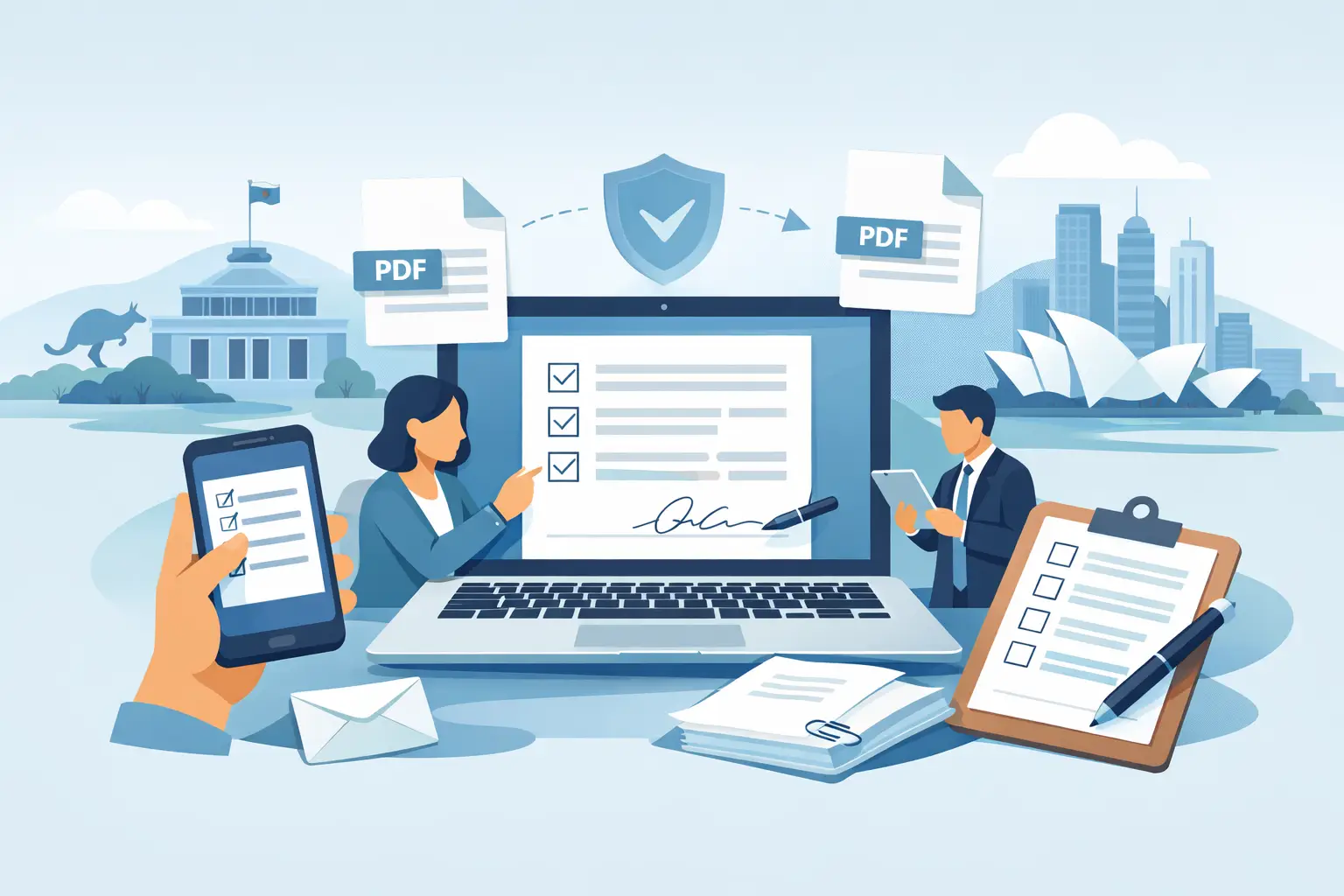
A council form filler is useful when a local council sends you a PDF that looks simple enough - until you realise it needs to be printed, filled in by hand and scanned back in. For residents, sole traders and busy admin teams, that is an unnecessary detour. If the council provides a PDF, you should be able to open it, type clearly into it, save a copy and prepare it for the next step from the device you already have.
Council paperwork comes in many forms. It may relate to a property, a local service, a community facility, a business activity or a request to the council. The details and submission rules vary between councils, but the practical problem is often the same: the PDF is awkward to complete.
What a council form filler does
A council form filler is a tool for entering text into a PDF form. Rather than handwriting answers, you can type into existing fields where they are available or place text in the right position on a non-fillable PDF. You can then save or download the completed document, ready to print or email where the council's instructions allow.
This is particularly handy when the form arrives as an attachment, is downloaded from a council website or is shared internally by an office manager. There is no need to turn a straightforward admin task into a trip to the printer followed by a hunt for a working scanner.
The tool does not decide what a question means or tell you what to enter. It simply helps you prepare the PDF in a legible, digital format. That distinction matters with official paperwork: use the council's own instructions for the content, dates, attachments, signatures and submission method.
General guidance only. QuickFill helps you complete PDF forms, but it is not an official government service and does not provide legal, financial, medical, tax, tenancy, migration, Centrelink, Medicare or benefits advice. Always check the official instructions for important forms.
Why council PDFs can be frustrating
Not every PDF works like an online form. Some have proper editable boxes that move from one field to the next. Others are essentially a digital image of a paper form, with blank lines but no clickable fields at all. A few may open differently depending on the browser, mobile or desktop software being used.
That is why people often end up printing forms they would rather complete digitally. Handwriting can be hard to read, there may not be room to correct a mistake neatly, and scanning can leave you with a large or blurry file. If you are completing several forms for properties, venues, community programmes or business administration, the repetition adds up quickly.
A browser-based PDF workflow is a practical alternative. Open the form, type the information you have ready, check the page layout, then keep a completed copy for your records before you send or print it.
A practical workflow for filling a council PDF
Start with the version of the form supplied by the relevant council. Check that it is the current document and read its instructions before entering anything. If the form asks for supporting documents, a handwritten signature or a particular submission channel, follow those directions rather than assuming a typed PDF alone is enough.
Next, open the PDF in your form-filling tool. For an interactive PDF, click into the available fields and type. For a flat PDF with blank spaces, add text carefully so it sits on the intended line or box. Use a readable size and leave enough room for information that needs to fit on one line.
Before saving, review every page rather than only the first screen. Text can sometimes sit slightly differently once the document is downloaded or printed. Check names, dates, contact details, reference numbers and any sections that run close to the edge of a box. This is a formatting check, not a check of whether the form content meets council requirements.
Finally, save or download the completed PDF with a clear filename. Something simple such as “Council-form-completed-May-2026” is easier to find later than “document-final-final”. If you need to email it, attach the saved version rather than relying on a browser tab that may be closed or refreshed.
Fillable PDF versus scanned form
The best approach depends on the file you have.
A fillable PDF is usually the quickest option. Its fields are already built into the document, so you can move through the form and enter text directly. It often looks tidy with minimal adjustment.
A scanned or non-fillable PDF takes a little more care. You may need to position each text entry over a blank area and make small layout adjustments. This is still often easier than printing and scanning, especially when you are using a mobile, laptop or shared office computer without a scanner nearby.
If a form includes sections that must be completed by another person, do not try to work around that requirement. Prepare the parts you can complete, save a copy and follow the council's instructions for the remaining sections.
Useful habits for repeat council paperwork
For people who complete forms regularly, the biggest time saving usually comes from preparation rather than typing speed. Keep commonly needed business or contact information in a separate, accurate reference document so you can copy it into forms when appropriate. Review it before use, particularly if addresses, phone numbers or staff details have changed.
It also helps to keep an orderly folder of blank originals and completed copies. Name files by council, form type and date, and avoid overwriting the blank version. When a council replaces a form, download the new copy rather than reusing an old template from your computer.
For small businesses and community organisations, agree on a simple handover process. One person can prepare the PDF, while the person responsible for the information reviews the completed document before it is sent. This keeps the task moving without suggesting that a form-filling tool has reviewed or approved the answers.
When printing is still the right option
Digital completion will not suit every form. Some council documents specifically require ink signatures, certified copies, particular paper documents or in-person delivery. Others may be designed for online submission through a council portal rather than by email.
In those cases, filling the PDF digitally can still make the preparation stage clearer, provided the council permits it. You may be able to type the required information, print a clean copy and then complete any required physical steps. But the council's instructions take priority over convenience.
There is also a practical judgement call with very complex forms. If text placement becomes crowded or a PDF does not display properly, printing and completing it according to the stated instructions may be the more reliable choice. A good workflow is the one that leaves you with a readable document in the format requested.
Common questions about council form fillers
Can I use a council form filler on a mobile?
Often, yes. A mobile can be useful for quick edits or straightforward forms, particularly when you are away from a printer. For longer documents with many fields, a larger screen may make it easier to check alignment and review every page before downloading.
Can I email the completed PDF to the council?
That depends on the instructions for that specific form. Some councils accept emailed documents, while others use an online portal, post or in-person submission. A form filler prepares the PDF but does not send, lodge or track it for you.
Will typing into a PDF make the form acceptable?
Only the relevant council can set its requirements. Check whether it accepts typed forms, whether a signature is needed and what supporting material must accompany the document. The purpose of a form filler is to make the PDF easier to complete and prepare.
What if the PDF has no editable boxes?
A non-fillable PDF may still be suitable for typed text placement. Take extra time to check that each entry is readable and positioned correctly, then save a copy before printing or sending it as directed.
When a council PDF lands in your inbox, the task should not automatically involve printing, handwriting and scanning. Open QuickFill and complete your form, then take a moment to check the council's instructions before you prepare it for submission.