

How to Complete Printable Forms Digitally
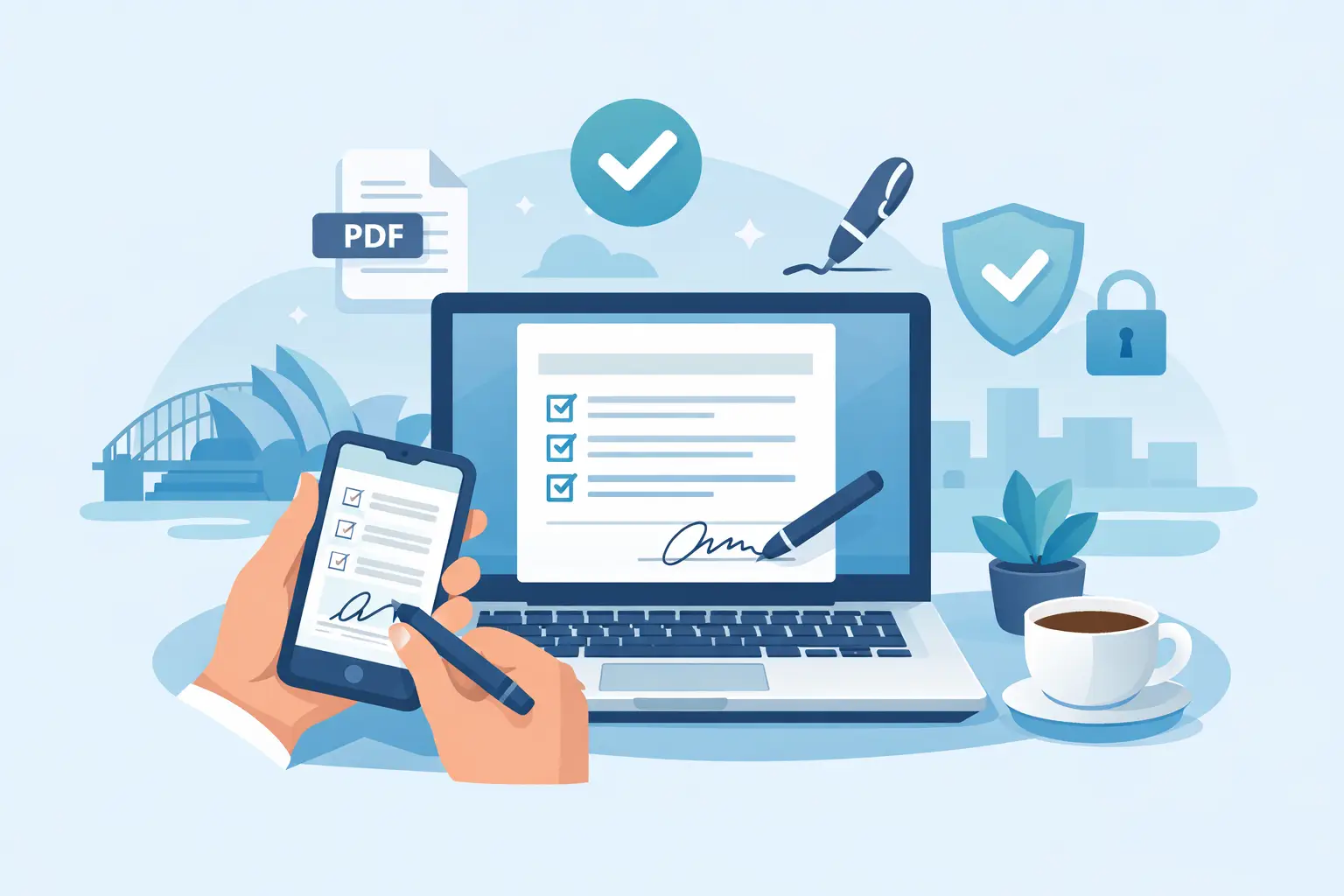
You do not notice how much time printing and scanning wastes until you are halfway through a form, your printer is out of ink, and the PDF still will not let you type. That is usually the moment people start looking up how to complete printable forms digitally.
The good news is that most printable forms can be handled without the usual paper chase. If the form is a PDF, you can often open it in a browser-based form-filling tool, type into the fields, save your progress, and download the finished file when you are done. For everyday admin, that is usually faster, easier to read, and less frustrating than handwriting everything and trying to scan it back into shape.
If you regularly deal with tax paperwork, rental forms, healthcare documents, council paperwork or business PDFs, the main job is not understanding the form itself. It is getting the document open, editable, legible and ready to send. That is where a digital workflow helps.
General guidance only. QuickFill helps you complete PDF forms, but it is not an official government service and does not provide legal, financial, medical, tax, tenancy, migration, Centrelink, Medicare or benefits advice. Always check the official instructions for important forms.
Why printable forms cause so much friction
A printable form sounds simple enough. Download it, fill it in, send it back. In practice, plenty of PDFs are not very cooperative. Some have proper fillable fields. Some are basically flat pages that look digital but behave like a scanned image. Others open differently depending on your device, browser or software.
That is why people often end up with awkward workarounds. They print the document, write on it by hand, take photos on a mobile, and then email a file that is hard to read and larger than it needs to be. For businesses and busy admin teams, the problem is not one form. It is repeating that process over and over.
Digital completion fixes the workflow problem first. It lets you type cleanly, keep a digital copy, and avoid redoing the whole thing because someone could not read your handwriting or the scan came through crooked.
How to complete printable forms digitally without overcomplicating it
The easiest approach is to treat the PDF as the thing you are preparing, not the thing you have to fight with. Open the form in a tool designed for completing PDFs, check whether the text can be entered directly, and work through the form in order. Once finished, save and download the completed version so you have a copy ready for printing or emailing if needed.
That sounds basic, but the right tool matters. General PDF software can be bloated, expensive, or confusing if all you want to do is type into a form. Browser viewers can also be hit and miss. Some display the document fine but do not preserve your entries properly when saved. Others struggle with more complex layouts.
If your work involves repeated paperwork, a dedicated form-filling tool is usually a better fit than a full document suite. It keeps the task narrow: open the PDF, complete it, save it, move on.
Start with the PDF itself
Before you spend ten minutes clicking around, check what kind of file you have. If the form was designed to be filled electronically, you will often see obvious text fields, tick boxes or date areas. If it is a scanned printable form, you may need a tool that lets you place text over the page rather than relying on built-in form fields.
That distinction matters because it changes what "digital completion" looks like. In one case, you are typing into existing fields. In the other, you are using the PDF as a background and adding your own text in the right places. Both can work well, but people get stuck when they expect every printable PDF to behave like a proper web form.
It also helps to keep the source file untouched. Download the original form and work from a copy, especially if it is something you may need again later. That saves you from chasing down a fresh blank version every time.
How to complete printable forms digitally on different devices
Desktop and laptop are usually the easiest options, especially for longer forms. You can see more of the page, move around quickly, and type with fewer mistakes. That is useful for rental packs, onboarding forms, claims paperwork, or anything with multiple pages.
A mobile can still be fine for short documents or quick updates, particularly if you are away from your desk. The trade-off is screen size. It can be harder to spot missed fields, line up text neatly, or review the full page before saving.
A tablet sits somewhere in the middle. It can work well when you want more visibility than a mobile but still need flexibility on the go. For field staff, healthcare workers, property managers and sole traders, that can make a genuine difference.
The best device is usually the one that helps you finish the form cleanly the first time. If the document is long or formal, larger screens tend to win.
Common issues when filling PDF forms digitally
The most common problem is assuming the PDF is broken when it is really just not interactive. If you cannot click into a field, the form may not have any fillable fields built in. In that case, you need a tool that supports typing onto the document itself.
Another issue is saving. Some people complete the form in a browser preview, close the tab, and later realise their edits were not preserved. A good habit is to save or download the completed file as soon as you finish, then reopen it briefly to confirm your entries are still there.
Formatting can also be tricky. Text may appear too large, too small or slightly misaligned depending on the form layout. That is not always a deal-breaker, but it is worth checking before you send anything on. Clean presentation matters, especially when the form is being reviewed by someone else.
Then there is the signature question. Some forms allow digital completion but still require a handwritten signature after printing. Others accept an inserted signature image or typed name, depending on the instructions. The point is not to guess. Complete the PDF digitally, then check the form's own directions about signing and submission.
When a browser-based tool makes more sense
If your current process involves downloading software, opening the file in one app, exporting it in another, then attaching it to an email from somewhere else, it is already too clunky. Most people just need a straightforward way to open a PDF and complete it without installing a heavyweight program.
That is where a browser-based tool can help. It is especially useful for people handling paperwork across different devices or locations, and for teams who do not want every staff member wrestling with desktop PDF software. For Australian users managing common admin tasks, the appeal is simple: fewer steps, less printing, and a cleaner finished document.
QuickFill is built around that exact workflow. You open the PDF, complete the form, and prepare it for whatever comes next, whether that is downloading, printing or emailing it.
A practical workflow that saves time
If you fill forms regularly, consistency matters more than fancy features. Keep a folder for blank forms, another for completed ones, and use clear file names so you do not mix them up. Save the final version as soon as you are done, and if the form matters, reopen it to make sure everything displays properly.
It also helps to complete forms in one sitting where possible. Starting on one device and finishing on another can work, but it increases the chance of missed fields or version mix-ups if your process is messy.
For admin-heavy roles, the real benefit of digital completion is not just speed. It is readability, repeatability and less friction. You are less likely to deal with skewed scans, missing pages or handwriting that needs interpretation. That does not mean every form becomes effortless, but it does mean the PDF itself stops being the obstacle.
What digital completion does and does not solve
Digital tools can make a printable form easier to complete, but they do not answer the form for you. They help with the document workflow: opening, typing, saving, downloading, printing and emailing. They do not tell you what information to enter, whether a form is current, or whether a particular authority will accept it.
That distinction matters with official paperwork. A smooth PDF process is valuable, but it is still worth checking the form instructions carefully, especially if signatures, attachments or submission rules are involved.
For most people, though, the biggest win is simple. You stop treating every printable PDF like a small crisis. Once you have a reliable way to open the form, type into it properly, and save a clean copy, paperwork becomes a task you can finish instead of a chore you keep putting off. If that sounds familiar, open QuickFill and complete your form.