

Medicare PDF Claim Workflow Made Simpler
A Medicare PDF claim workflow often starts with a form that looks simple, then becomes a hassle when it will not let you type where you need to. You print it, write by hand, scan it back in, realise a detail needs changing, and start again. For people managing healthcare paperwork for themselves, a family member or an office, that is time better spent elsewhere.
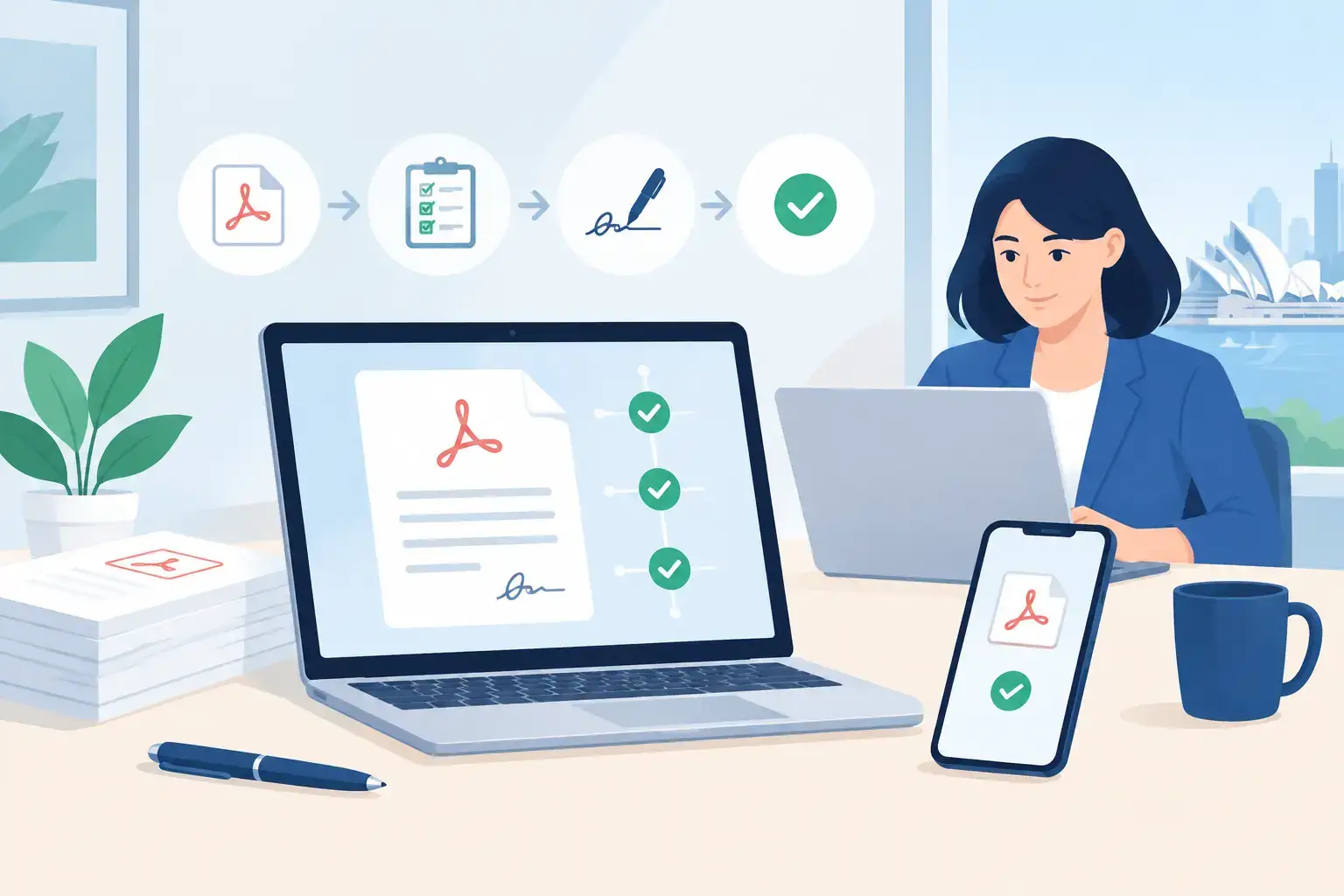
A practical workflow focuses on preparing the PDF clearly and keeping a usable copy. It does not need to involve complicated desktop software or a printer at every turn. The aim is to open the right document, enter information where the form allows it, add a signature if required, review the finished pages and save a copy ready for the next step set out in the form’s official instructions.
What a Medicare PDF claim workflow covers
A PDF claim form may be an interactive document with clickable fields, or a flat document designed to be printed and handwritten. The difference matters. Interactive PDFs usually let you click into a field and type straight away. Flat PDFs can look like forms on screen but have no editable areas at all.
Your workflow should account for either format. First, keep the original PDF unchanged where possible. Work from a copy so you can return to a clean version if you need to correct formatting, update a date or prepare another copy. Give the completed file a clear name that helps you recognise it later, such as the form name and completion date. Avoid putting sensitive personal details in the file name.
The form itself should remain the source of truth for what is required and where it needs to go. A PDF tool can help you prepare the document, but it cannot determine what a question means, whether a particular section applies to you or whether a form meets an official requirement.
Start with the current PDF and clear instructions
Before filling anything in, check that you have the current version of the PDF from the relevant official source. Forms can change, and an old copy saved to a Downloads folder may not match the current instructions. Read any notes on whether the form can be completed digitally, needs a handwritten signature, must be printed, or requires supporting documents.
This small check prevents a common frustration: spending time carefully completing a PDF only to find that the instructions require a different version or a different preparation method. It also helps if you are completing forms for clients, patients or staff as part of an admin role. Keep the document and its accompanying instructions together in the same work folder until the task is finished.
If you receive a PDF by email, save it locally before editing rather than working from a browser preview. Browser previews can be useful for reading, but they do not always handle editable fields, signatures or saved changes consistently.
Fill interactive and flat forms differently
With an interactive form, click each field and type carefully. Move through the document in a steady order rather than jumping between pages. This makes it easier to notice blank sections and reduces the chance of leaving an unintended field empty. Use the form’s own checkboxes and drop-down menus where available instead of placing text over them.
A flat PDF needs a different approach. Rather than printing it, you can use a browser-based PDF filling tool to place text boxes on the page. In QuickFill, the Find boxes button can spot blank lines and boxes on a flat form and place fill-in boxes over them. You can then position and size the text so it sits neatly within the printed layout.
Take a moment to check text size and alignment as you go. A long entry may need a smaller font or a slightly repositioned box to stay inside the allocated space. Do not squeeze text into an area that is too small to remain readable. If the form does not provide enough room, refer to its official instructions rather than improvising a new layout.
Build in a review pass before signing
Most avoidable PDF problems are presentation problems: text sitting outside a box, a date obscured by another field, a tick appearing in the wrong place, or a signature placed on the wrong page. These are easier to catch on screen before you download or print.
Review the PDF page by page at normal viewing size. Confirm that each entry is readable, no text overlaps labels, and no annotation covers instructions or another field. Check that the document still has the correct number of pages. If you added a signature image or drew a signature, make sure it is visible and positioned only where the form indicates.
For a form that needs input from more than one person, decide who prepares the document and who reviews it before it is finalised. Avoid sending several editable copies back and forth without a naming system. Version names such as “draft”, “reviewed” and “final prepared” can make the handover clearer without changing the form’s content.
Save a copy you can find again
Once the PDF looks right, save or download the completed version to a location you can access later. If you use a mobile or tablet, confirm where your device stores downloads before closing the browser. On a computer, use a folder structure that separates blank originals from prepared copies.
It can be useful to keep two files: the untouched original and the completed PDF. Where the PDF tool allows further editing, retaining an editable working copy can also help if a non-content change is needed later, such as repositioning text or preparing a clean copy for printing. Whether that is worthwhile depends on your situation and the form’s instructions.
Before sending or printing, open the downloaded file once. This final check confirms that the text, signatures and page formatting have carried across properly. It is particularly useful when the PDF was completed on a mobile device or when a form has several pages.
Choose the next step from the form instructions
Preparing a PDF is not the same as submitting a claim. Some forms may need to be printed, while others may have instructions for sending the completed document through a particular channel. Follow the official instructions for the form you are using, including any requirements for copies, signatures or supporting material.
If you need to email a prepared PDF to an authorised recipient, attach the downloaded file rather than relying on a share preview. Check the recipient address and make sure you are sending the intended version. If printing is required, use the final downloaded PDF and check the print preview first so that no pages are cut off or scaled unexpectedly.
For recurring admin work, a repeatable Medicare PDF claim workflow can be as simple as using the same process each time: save the current form, complete the PDF, review every page, download the final copy and follow the form’s official submission directions. Consistency is useful, but do not assume every form follows the same rules.
When a browser-based PDF tool is useful
A browser-based tool suits people who only need to complete a document occasionally, as well as admin teams dealing with a steady flow of paperwork. It can be especially helpful when a PDF will not accept typed text in the usual viewer, when you are away from your usual computer, or when you want to avoid printing and scanning a flat form.
QuickFill works in a browser on a computer, tablet or mobile. You can type into existing fields or add fill-in boxes to a print-only PDF, then add a drawn, typed or image-based signature where appropriate. Free to fill and preview. Pay only when you download. Open QuickFill and complete your form when you are ready to prepare the PDF.
General guidance only. QuickFill helps you complete PDF forms, but it is not an official government service and does not provide legal, financial, medical, tax, tenancy, migration, Centrelink, Medicare or benefits advice. Always check the official instructions for important forms.
A well-prepared PDF should leave you with a readable document, a clear saved copy and fewer reasons to return to the printer. Keep the official instructions beside you, take the extra minute for a final visual check, and your paperwork can stay manageable even when the PDF itself is not.