

How to Complete an NDIS Service Agreement Template PDF
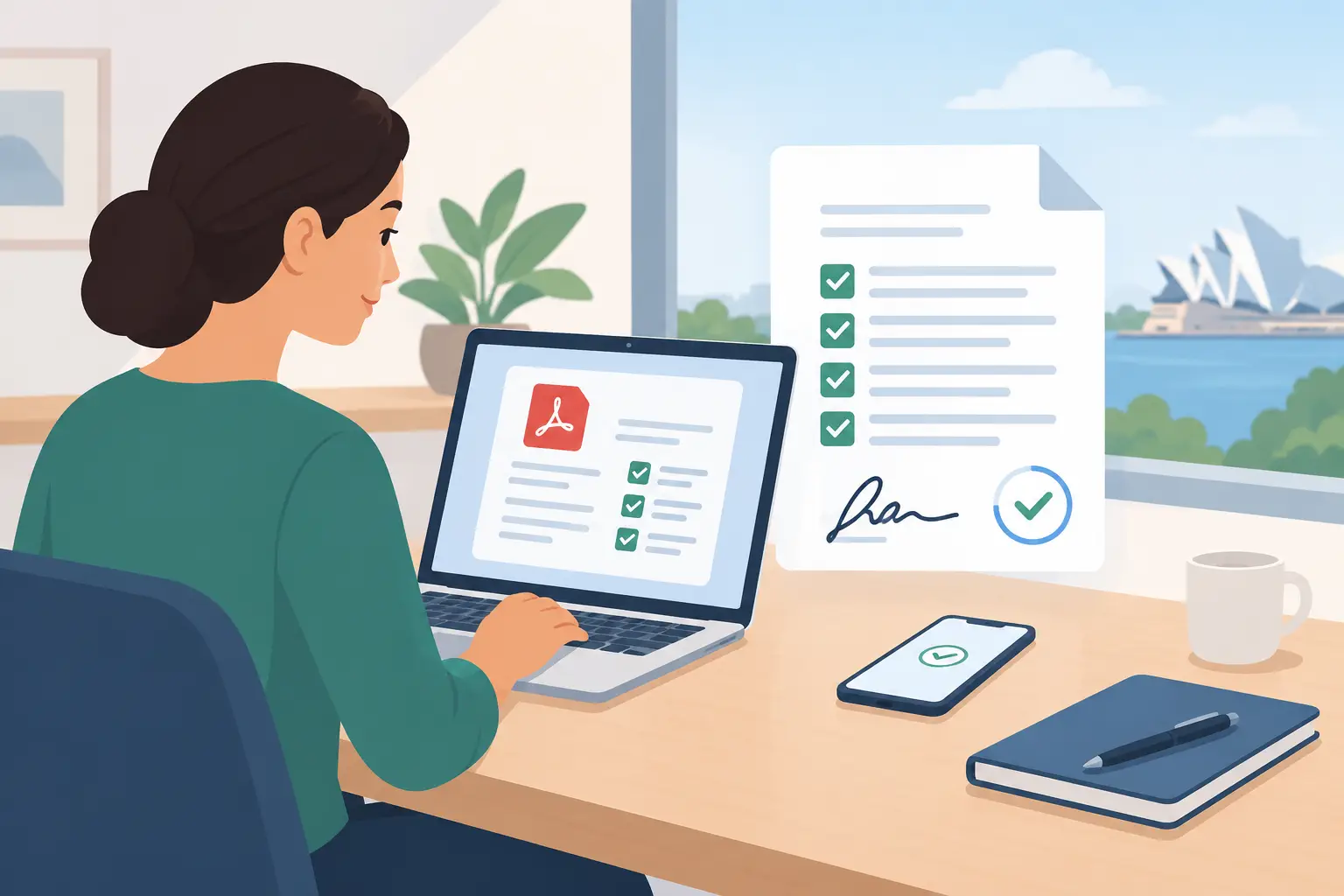
An NDIS service agreement template PDF can be straightforward to prepare, but the usual paperwork routine is not. A form arrives by email, the fields will not type properly in the browser, and suddenly you are looking for a printer, scanner and a working pen. For participants, nominees, providers and support staff, a better approach is to complete the PDF on screen, review it carefully and keep a clear copy for your records.
This guide is about the document workflow only: opening a PDF, entering text, saving a copy and sharing it when needed. It does not explain what any agreement should say or what terms you should accept.
What an NDIS service agreement PDF is used for
A service agreement is a document used between an NDIS participant and a provider to set out the services they have agreed to provide. The layout, wording and fields can differ between organisations. Some PDFs are interactive, with fields you can click and type into. Others look like forms but do not allow typing without a PDF form-filling tool.
That difference matters when you are trying to prepare a document quickly. A locked or non-fillable PDF does not necessarily mean you need to print it. You may be able to open it in an online editor and place text directly onto the page instead.
Before entering anything, check that you have the intended version of the document. If a provider has sent an updated agreement, use that copy rather than relying on an older blank file saved in your downloads folder. Keeping the original filename visible until you save your completed version can also help avoid confusion.
How to complete an NDIS service agreement template PDF
Start by saving the blank PDF somewhere you can find again, such as a dedicated paperwork folder on your computer or mobile. If the document opens in a browser preview but will not let you type, download the original file first. Browser previews are useful for reading, but they are often limited for completing forms.
Open the PDF in a form-filling editor. If it contains active fields, select each field and type your information. If it is a flat PDF, use the text tool to place text in the relevant spaces. Take your time with alignment, particularly where the form has small boxes, dates or signature areas.
Use the document's own labels as your guide. Do not assume that a field means the same thing as it did on a previous agreement, even if the layout looks familiar. Agreements can be updated, and providers may use different versions for different services.
Once the text is in place, zoom out and look at the whole page, then zoom in again for smaller fields. This simple two-pass check is useful because it catches both types of issue: text that is visibly out of place, and small typing mistakes that are easy to miss at normal screen size.
When you are satisfied that the PDF looks complete, save or download a finished copy. Give it a practical filename that separates it from the blank version, such as “Service agreement - completed - [month year]”. Avoid vague names such as “new PDF” or “final final”, particularly if you manage paperwork for several clients or households.
If the document needs to be shared, attach the completed PDF to the requested email or use the sharing method specified by the organisation. Keep a copy of the exact version you sent. That is often more useful than trying to recreate the document later from memory.
A simple workflow for less paper handling
The most reliable PDF workflow is usually the least complicated one: keep the original, create a completed copy, review it on screen, then save the final file separately. This prevents an accidental overwrite of the blank agreement and makes it easier to locate the right version later.
For regular admin work, it helps to use a consistent folder structure. You might keep one folder for blank forms, another for completed documents and a third for files that have been sent. The system does not need to be elaborate. It only needs to make sense to the person who will need the paperwork next week or six months from now.
A digital workflow is especially handy when a participant, family member, coordinator or provider is working from different locations. Rather than printing, handwriting and scanning pages back in, the form can be typed into and prepared as a PDF. That does not change the agreement itself, but it can remove a lot of unnecessary handling.
Check the PDF before you download it
A completed form can look fine at first glance while still having practical presentation problems. Before saving the final PDF, check that text is readable, dates fit within their spaces and no important text sits over labels or lines.
Also look for pages that may have been missed. Multi-page agreements sometimes include fields near the end, or a final page intended for signatures. Reviewing page thumbnails can be quicker than scrolling blindly through a long document.
If you make a change after downloading, save a new version rather than overwriting the file you already shared. A clear naming pattern can help, for example “completed”, “revised” and a date. This is not about deciding which version is correct. It is simply a practical way to keep your files organised.
When printing may still make sense
Digital completion will not suit every situation. Some organisations may ask for a printed copy, may have their own preferred signing process, or may provide instructions that require a particular format. Follow the instructions that came with the document.
Printing can also be useful if someone prefers to read a longer agreement on paper before it is completed. In that case, a practical option is to read the document in the preferred format, then return to the PDF for typing and preparing a clean final copy. It depends on the person, the provider's process and the version of the form.
Use a PDF tool when the form will not type
A general document editor is not always the best fit for PDFs. Converting an agreement to another file type can shift page layouts, move lines and make a familiar form harder to read. A PDF form-filling tool is designed to keep the document in its original page format while allowing you to add text.
QuickFill is built for this everyday paperwork task. You can open a PDF, type into it and preview the completed document before deciding whether to download it. Free to fill and preview. Pay only when you download.
This can be helpful when the file is not fillable in your browser, when you are working from a mobile or when you want to avoid the print-scan cycle. The tool prepares the PDF only. It does not decide what information belongs in an agreement, check the form's requirements or send it to an organisation on your behalf.
Keep the final copy easy to find
Paperwork feels manageable when you can find the right file without opening five similar PDFs. After preparing an NDIS service agreement template PDF, store it in the location you normally use for important records and keep the filename specific enough to identify it later.
If someone else needs a copy, send the completed PDF in the format they request and retain your own version. A calm, repeatable process - open, type, review, save and share - can make routine paperwork far less frustrating.
General guidance only. QuickFill helps you complete PDF forms, but it is not an official government service and does not provide legal, financial, medical, tax, tenancy, migration, Centrelink, Medicare or benefits advice. Always check the official instructions for important forms.
When the form is ready to be completed, open the PDF, work through it carefully on screen and keep a clearly named copy of the version you finish.