

PDF Form Filler vs Word Processor Compared
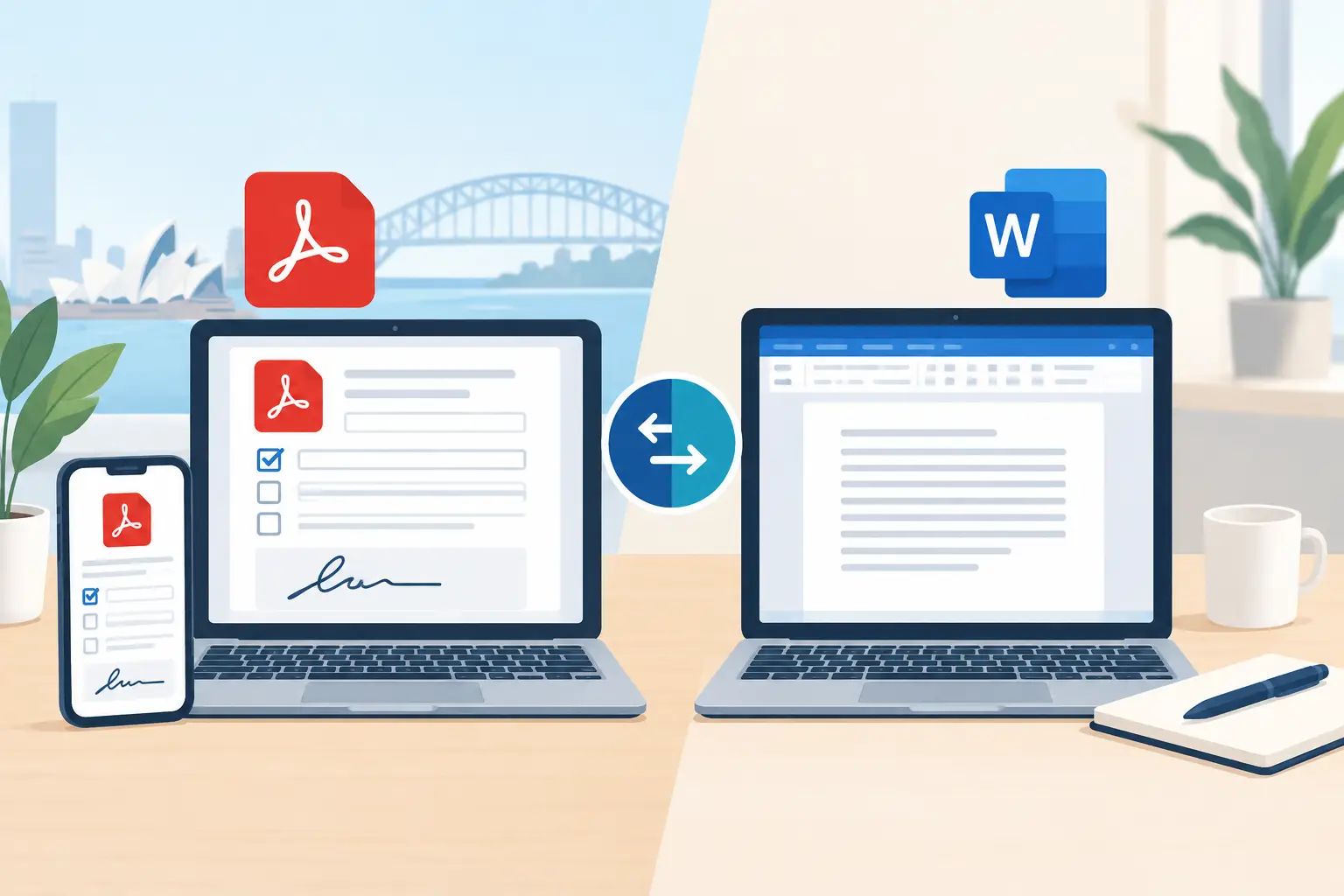
A PDF arrives in your inbox with boxes that will not let you type, a deadline is approaching, and printing it just to write by hand feels like a step backwards. The choice between a PDF form filler vs word processor matters because the wrong tool can turn a simple admin task into a messy formatting job.
A word processor is excellent for creating letters, reports and documents from scratch. A PDF form filler is designed for a different job: adding information to an existing PDF while keeping the original layout intact. For Australians completing rental paperwork, workplace forms, healthcare documents, council PDFs or business records, that distinction can save a surprising amount of time.
PDF form filler vs word processor: the core difference
A word processor starts with an editable page. You can write, delete, reformat, move images and change the structure of the document. That flexibility is the point. If you are preparing a cover letter, a client proposal or meeting notes, it is usually the right place to work.
A PDF form filler starts with a finished document. The headings, instructions, boxes and page layout are already there. Your task is to place text in the right spots, then save or download a completed version that still looks like the original form.
That makes a form filler better suited to a PDF someone else created and expects back in the same format. It also avoids the common problem of copying a form into a word processor, only to find tables shift, text wraps into the wrong area or a second page appears unexpectedly.
When a word processor makes sense
There are times when using a word processor alongside a PDF is practical. If a form asks for a long statement, supporting explanation or detailed notes, drafting that text in a word processor can be easier. You can review the wording, use spelling tools and keep a reusable version for your records before transferring only the required text into the PDF.
Word processors are also useful when the document is not really a form. A blank template for an invoice, staff procedure, simple agreement or letter may be easier to customise as a document file, particularly if you need to change headings, add your own sections or adjust the layout.
The trade-off is that a word processor does not naturally preserve a PDF's fixed design. Converting the PDF to an editable document may alter spacing, fonts, checkboxes, lines and tables. It can be workable for a simple one-page document, but less reliable when the form has tight fields, multiple sections or a layout that needs to stay exactly as supplied.
When a PDF form filler is the better choice
Use a PDF form filler when you need to complete an existing form and return it in PDF format. This is especially helpful where the document has labelled fields, boxed sections, repeated pages or formatting that should not move.
For example, a property manager may receive rental application PDFs from several applicants. An admin worker may need to prepare staff details forms. A sole trader may need to complete supplier paperwork. In each case, the priority is not redesigning the document. It is entering clear, readable information into the supplied PDF and preparing it to send on.
A browser-based tool also helps when you are working from a shared computer, a laptop without desktop PDF software, or a mobile device. Rather than printing, handwriting, scanning and hoping the scan is readable, you can type directly onto the document and keep the workflow digital.
QuickFill is built for this specific task. You can open a PDF, add text where it is needed, review the finished document and prepare it for download. Free to fill and preview. Pay only when you download.
Layout is where the difference becomes obvious
Most people do not compare tools until something goes wrong. A form that looked fine on screen can become difficult to use after conversion. A checkbox may disappear. A table may split across pages. A signature line may move. Text may no longer line up with the labels it belongs to.
PDF form filling keeps the supplied form as the visual base. You are working over the document rather than rebuilding it. That is useful when a person receiving the form needs to read it quickly, match your responses to the right fields or print it without unexpected layout changes.
This does not mean every PDF behaves the same way. Some PDFs have interactive fields you can click and type into. Others are flattened documents that look like forms but do not contain editable fields. A capable form-filling workflow is valuable for the second type because it lets you add text without first converting the file into a different document format.
Speed is not only about typing faster
The slow part of paperwork is often everything around the typing. Printing a PDF, finding a pen, scanning it, naming the scan, checking whether the pages are straight and attaching it to an email can take longer than filling in the form itself.
With a PDF form filler, the workflow is simpler: open the PDF, type in the relevant places, check that the text is readable, then download, print or email the completed file as needed. If you notice a typo before downloading, you can correct it on screen rather than starting again with another printed copy.
For people who deal with forms regularly, consistency matters too. A typed PDF is generally easier to read than handwriting, particularly when several people need to review the document. It also makes a repeated admin process less dependent on having a printer and scanner available.
What about signatures, checkboxes and attachments?
This is where it helps to separate the document task from the form requirements. A form filler can help you place typed information onto a PDF and prepare the file. It does not decide whether a particular form requires a handwritten signature, an electronic signature, supporting documents, witness details or another submission method.
Check the instructions supplied with the form before you send anything. If the form needs attachments, make sure you have them ready and name your files clearly. If you need to print and sign, completing the typed sections first can still make the final printed copy easier to read.
General guidance only. QuickFill helps you complete PDF forms, but it is not an official government service and does not provide legal, financial, medical, tax, tenancy, migration, Centrelink, Medicare or benefits advice. Always check the official instructions for important forms.
A practical choice for common paperwork
For forms that must remain PDFs, a form filler is usually the more direct option. Think of a rental application, medical consent form, employee details document, service agreement or council application. The layout has already been designed, and your job is to complete it clearly without changing its structure.
For writing that needs editing and formatting freedom, a word processor remains the better tool. Draft a letter there. Prepare a detailed statement there. Build a business document there. Then use a PDF form filler for the forms that need to stay as forms.
In many real workflows, the best answer is not choosing one tool forever. Draft longer text in a word processor when it helps, then place the final information into the PDF form. That approach gives you editing flexibility without sacrificing the original document layout.
Before you download or send a completed PDF
Take a moment to review the document at normal zoom. Check that text sits in the intended area, is large enough to read and has not covered important instructions or labels. Confirm every page is present, especially on multi-page forms, and save the finished file with a name you will recognise later.
If you are emailing the PDF, open the downloaded version once before attaching it. This simple check can catch a missing page, an unfinished field or a file saved under an unhelpful name. If a printed copy is required, print from the completed PDF rather than from a converted word-processing file.
The right tool is the one that removes unnecessary work. When the document needs to remain a PDF, start with a PDF form filler and keep the process focused on completing the form clearly.