

PDF Saving Problems: Causes and Simple Fixes
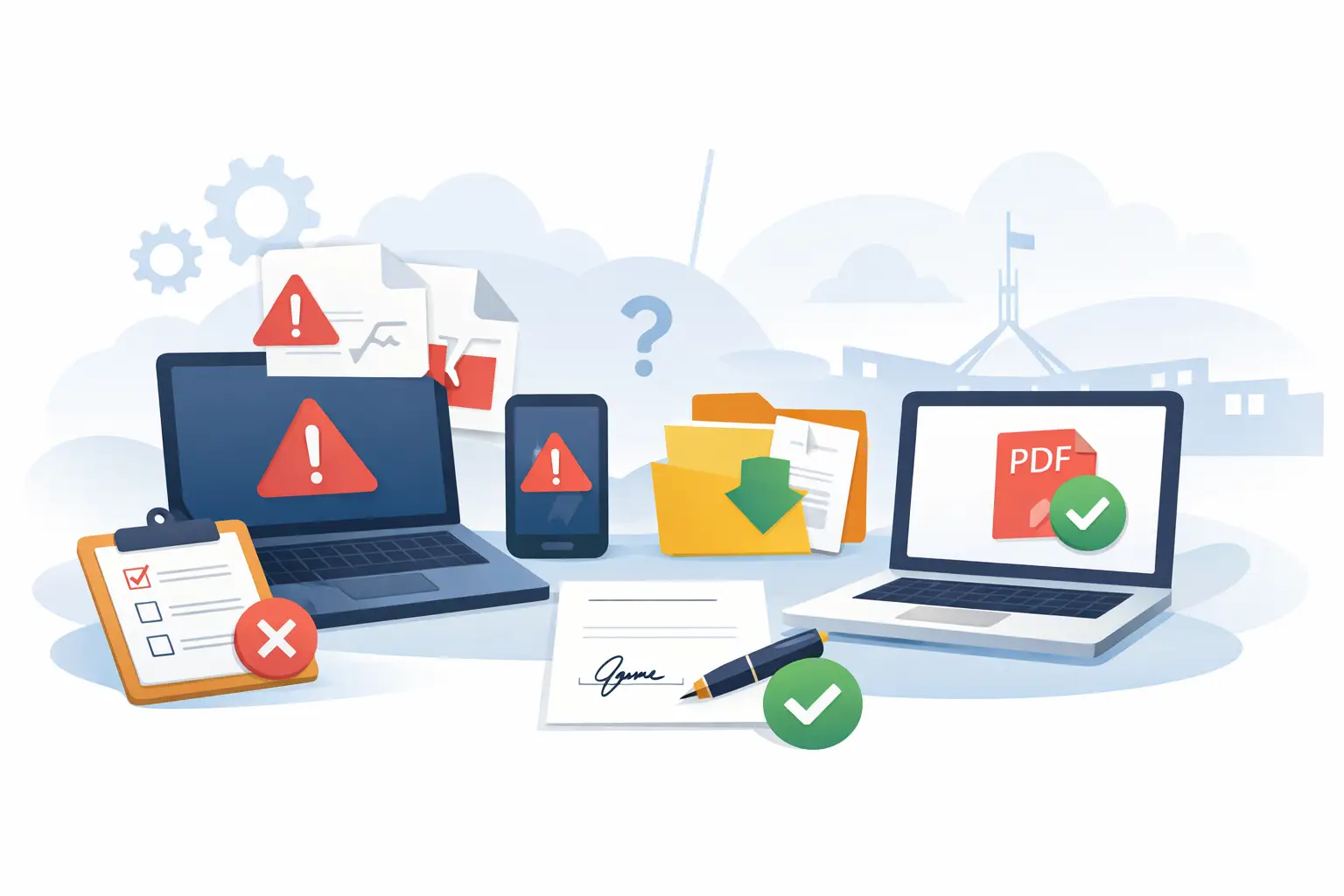
A form can look complete on screen, then appear blank when you reopen it, attach it to an email or send it to the printer. PDF saving problems are frustrating because they often show up at the last step, when the document is due and you thought the work was finished. The good news is that most are workflow issues rather than a problem with the information you typed.
Whether you are preparing a rental application, a workplace document, a healthcare form or routine business paperwork, the goal is simple: keep a usable copy of the completed PDF. That means knowing the difference between saving, downloading and sharing, and checking the finished file before you close the tab.
Why PDF saving problems happen
A PDF is designed to preserve a document's layout, but not every PDF works the same way. Some have editable fields built in. Others are effectively flat pages that need text placed over the top. Some are restricted by their creator, while others behave differently depending on whether you open them in a browser, a mobile app or desktop software.
The most common issue is assuming that a browser preview has saved your work automatically. Many browsers let you view a PDF in a tab and may remember the file temporarily, but that is not the same as creating a completed copy on your device. If you close the tab, refresh the page or reopen the original attachment, your entered text may not be there.
Another common cause is saving over the wrong file. You may start with an empty form from an email, complete it, then later attach the original empty version because both files have similar names. This is particularly easy to do when several versions sit in Downloads.
Some documents also contain restrictions or unusual form settings. You may be able to type in a field but find that the file will not save changes in the program you are using. In other cases, the fields remain editable but the values do not display properly in another viewer. A PDF that behaves well on one device can still need a quick check on another.
Save, download and export are not always the same
The wording around PDF files can be confusing. In practical terms, a save action updates a file you already have open. A download action creates a copy from a website or browser into a folder on your device. An export action may create a new version in a different format or with different settings.
If you complete a PDF online, look for the option that creates or downloads the completed document. Then choose a clear location, such as a dedicated folder for current paperwork. Do not rely on seeing the completed form in a browser tab as proof that it exists as a file.
Once the file has downloaded, open that downloaded copy from your device rather than from the original website or email. Check that the text you entered is visible on every relevant page. This small step catches most problems before the document is emailed, printed or uploaded elsewhere.
Use a file name you can recognise
A sensible name prevents version mix-ups. Start with the document type, add a date, then add a simple status such as “completed” or “ready to send”. For example, “lease-application-12-08-2026-completed.pdf” is easier to identify than “form(3).pdf”.
Avoid repeatedly saving over a single important file while you are still working. Keeping the original blank PDF and one clearly labelled completed copy gives you a fallback if something goes wrong. If you need to make further changes, save a new version rather than guessing which copy is current.
A practical workflow that prevents lost changes
The safest approach is not complicated, but it does involve pausing before you close anything. First, open the correct source PDF and complete the fields or add text where needed. Next, use the available download or save option to create the finished copy.
Open that finished copy from its saved location and review it page by page. Make sure entered text is readable, not cut off, and sitting in the intended place. If the PDF includes checkboxes, signatures or date fields, confirm they are visible too. You are checking the document presentation, not deciding what information should be entered.
Only after that check should you attach the saved file to an email, print it or upload it through the relevant service. Where possible, open the attachment once more before sending. It takes a moment and avoids the awkward follow-up where an empty or outdated form has been sent.
For recurring work, such as client onboarding packs or standard admin forms, use the same folder and naming approach each time. A repeatable process is more useful than trying to remember where each browser or app keeps its files.
When the PDF will not save at all
If the save button is greyed out, missing or produces an error, start by identifying where the document came from. A file opened directly from an email attachment, a cloud-storage preview or a website may not behave like a normal local file. Download the original PDF first, then open that downloaded version in the tool you are using.
If the file is password-protected or has editing restrictions, those settings may limit what can be changed or saved. The practical fix may be to ask the organisation that issued the form for an editable version or their preferred completion method. Do not try to work around document restrictions when you do not have permission to do so.
Storage space can also be the culprit, especially on mobiles and tablets. Check that your device has room for a new file and that you can find the Downloads folder. If you are working in a browser, try saving to the device rather than leaving the file open in a tab.
A different PDF viewer can sometimes display the same document differently. That does not automatically mean the form is damaged. It may simply use features that one viewer handles better than another. The useful test is whether your downloaded completed copy opens and shows your text correctly in the program you expect the recipient to use.
Filled fields that disappear or look wrong
Sometimes a PDF saves, but the typed text disappears when it is reopened. This can happen with interactive form fields that are not rendered consistently across PDF viewers. It can also happen when a document has been edited in a browser preview that did not create a permanent completed file.
First, reopen the downloaded copy in the same tool used to prepare it. If the values are there, create a fresh saved or downloaded version and check it again from your device. If text is missing, return to the original document and use a PDF form-filling workflow that produces a completed copy you can review before sending.
Layout issues are different. A long response may overflow a field, cover nearby text or become too small to read. Rather than assuming the PDF will resize itself, inspect each page at normal viewing size. If a field has limited room, follow the form's own instructions for additional information or contact the issuing organisation for guidance on the form itself.
PDF saving problems on a mobile
Mobiles are convenient for quick paperwork, but file handling can be less obvious than on a computer. A completed PDF may save into a Downloads area, a Files app or a browser-specific folder. Before closing the browser, use your device's file manager to locate and open the completed copy.
Be careful with share options. Sharing a link to the original file, sharing a screenshot and sharing the completed PDF are three different things. For paperwork that needs to remain a PDF, attach the downloaded PDF file rather than relying on a preview or image.
If you regularly complete forms from a mobile, create a simple folder structure that makes sense to you, such as “Forms to complete”, “Completed forms” and “Sent copies”. It reduces clutter and makes it far easier to find the correct version later.
A calmer way to complete PDF forms
Printing, handwriting and scanning can seem like the safest fallback when software is unhelpful, but it creates its own problems: hard-to-read writing, missed pages and another round of file handling. A browser-based form-filling tool can make the process more direct when you need to type into a PDF and prepare a copy for the next step.
QuickFill is built for completing PDF forms online without the print-and-scan routine. After filling in the document, the key habit remains the same: download the completed PDF, reopen it from your device and check it before you send or print it. The tool helps with the document workflow; the final review is what gives you confidence that you have the right file.
General guidance only. QuickFill helps you complete PDF forms, but it is not an official government service and does not provide legal, financial, medical, tax, tenancy, migration, Centrelink, Medicare or benefits advice. Always check the official instructions for important forms.
The best time to find a missing field or an unsaved change is while the form is still open in front of you. Open QuickFill and complete your form, then keep a clearly named, checked PDF copy ready for the next step.