

Tenancy PDF Guide for Faster Rental Paperwork
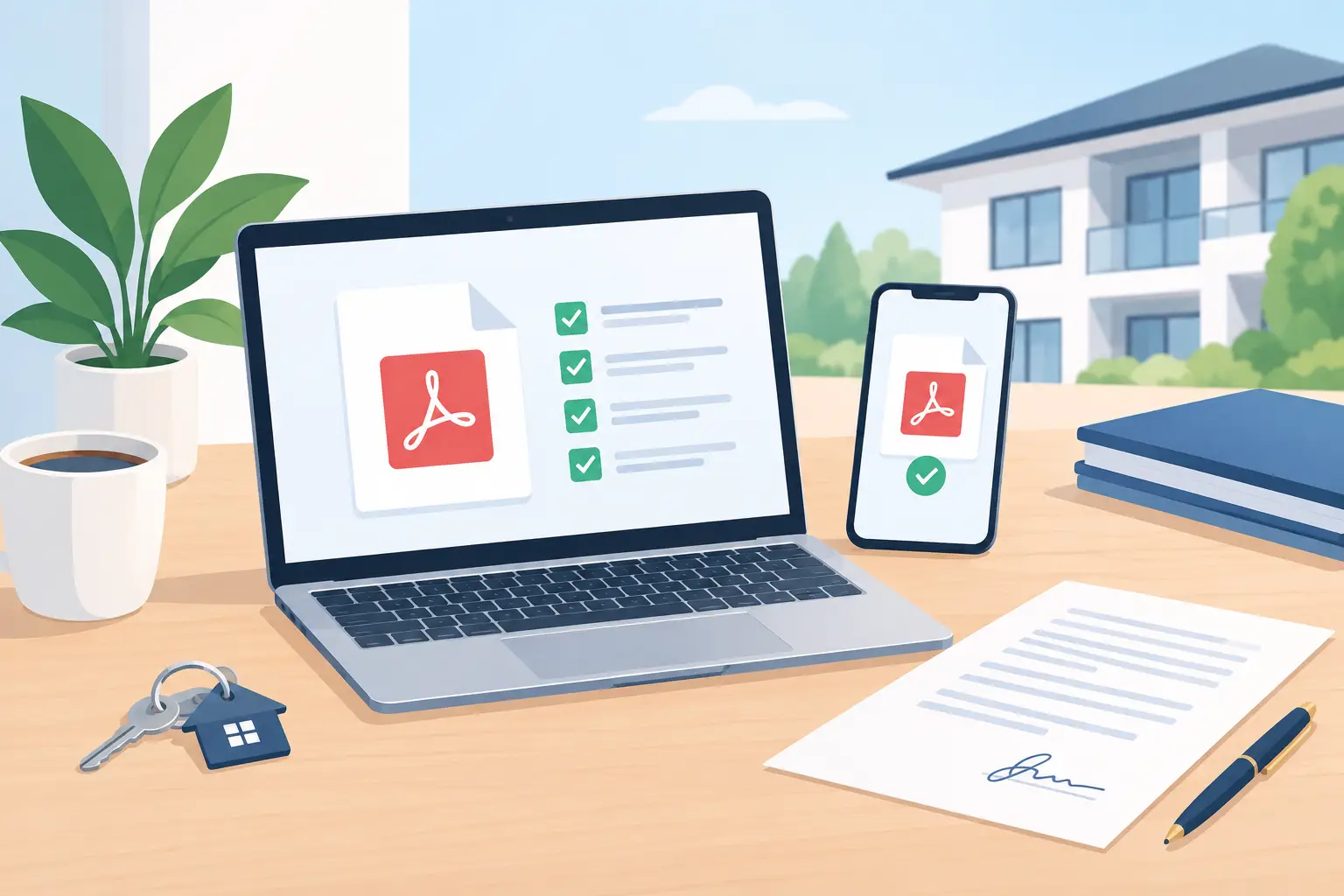
Rental paperwork has a way of arriving at the least convenient time: after work, between inspections, or when the printer has run out of ink. This tenancy PDF guide is about the practical side of preparing a rental PDF without the usual print, handwriting, scan and email routine.
Whether you are applying for a property, managing paperwork for a tenancy, or preparing documents for an agent or property manager, a clean digital workflow can make the admin easier to handle. The form’s instructions still matter, but completing the PDF itself does not need to be complicated.
What a tenancy PDF usually involves
Tenancy paperwork can include rental applications, condition reports, notices, agreements, supporting documents and correspondence forms. The exact document and process can differ between states and territories, as well as between agencies and landlords.
That is why it helps to separate two jobs. First, work out which document you need and read the current instructions supplied with it. Second, prepare the PDF clearly and keep a copy of the version you send. A PDF tool helps with the second job. It does not decide which form applies, tell you what a question means, or submit the form for you.
For example, a rental application may arrive as a downloadable PDF that looks straightforward until you try to type into it. Some fields work, some do not, and the document may open differently on a mobile, tablet or computer. Rather than handwriting the form or trying to edit it with software you rarely use, you can open the PDF in a browser-based editor and add text where needed.
A simple tenancy PDF workflow
The most useful workflow is the one you can repeat when there is a deadline. Start by saving the original PDF from the agency, property manager or official source. Keeping the original untouched gives you a reference point if you need to begin again.
Next, open the document in a PDF editor. If you have a NSW rental application PDF, you can fill the NSW rental application form online. For other documents, you can open the QuickFill PDF editor and place text onto the form without printing it first.
Work through the document at a steady pace. Zoom in when fields are small, particularly on a mobile screen. Type clearly, keep text within the visible space, and check that important details have not shifted over lines or boxes. A form may look fine while you are editing it but become difficult to read when printed, so a final preview is worth the extra minute.
Once the PDF is complete, compare it with the instructions provided by the organisation requesting it. This is a practical completeness check, not a judgement about whether the information is correct or whether the form will be accepted. Look for pages you may have missed, places requiring a signature, and any separate documents the instructions ask you to provide.
Then download the finished PDF and save it somewhere you can find later. A clear file name helps, such as “Rental-application-14-May-2026” or “Condition-report-copy”. Avoid vague names like “final-final-new.pdf”, especially when multiple people are handling the paperwork.
Why typing into a tenancy form can be easier than handwriting
Handwritten forms are sometimes necessary, but they create extra work when the document needs to be shared, corrected or stored. Small handwriting can be hard to read. A single mistake may mean starting a page again. Scanning can also produce crooked pages, shadows or files that are too large to email comfortably.
Typing directly onto a PDF gives you more control over presentation. You can adjust placement before downloading, review the page at normal size, and keep a digital copy for your records. This is useful for renters juggling several applications, as well as property managers and admin staff who prepare routine documents across different properties.
There is a trade-off. A typed PDF is only useful when the receiving party accepts it in that format. Some documents may require a particular signing method, original paper copy or additional process. Always follow the instructions that came with the form rather than assuming every PDF can be completed and returned in the same way.
Common PDF problems and practical fixes
A locked-looking PDF does not always mean you are stuck. It may simply be a document without interactive fields. In that case, a form-filling tool lets you add text boxes over the relevant spaces. This is often more practical than converting the file to another format and risking changes to the layout.
If text does not fit, shorten only where the form’s instructions allow it, reduce the text size carefully, or use any continuation method specified by the form provider. Do not force a long answer into a tiny box until it becomes unreadable. The goal is a clear document that matches the supplied format as closely as possible.
If you are using a mobile, rotate to landscape view for wider pages and zoom in before adding text. On a computer, use a larger screen if the document has dense tables or small checkboxes. For multi-page forms, save your progress regularly and review every page before download.
When an agency requests a PDF by email, attach the downloaded completed file rather than screenshots of each page. Screenshots are harder to print, may be out of order, and can lose detail. If you need a paper copy, print from the completed PDF so the pages stay in their original format.
Keeping rental paperwork organised
Rental documents tend to accumulate quickly. A simple folder system can save time later, particularly if you are applying for more than one property or managing paperwork for several tenancies. You might keep separate folders for applications, signed documents, condition reports and correspondence, with dates in file names so the latest version is obvious.
Be careful with duplicates. Before sending anything, open the attachment you intend to email and check it is the completed version, not the blank source PDF or an earlier draft. If a form is updated by the issuer, use the current version rather than copying information onto an old copy.
For people who regularly prepare PDFs, it is also worth keeping a short checklist beside the computer: source PDF saved, pages reviewed, file named clearly, finished PDF downloaded, and delivery method checked. This does not verify the form or its requirements. It simply reduces the chance of losing track of a document during a busy day.
When QuickFill may suit the job
QuickFill is designed for the everyday task of adding text to PDF paperwork online, without needing to print and scan first. It can be useful when you need to prepare a rental-related PDF from a computer, tablet or mobile and want a straightforward document workflow.
Free to fill and preview. Pay only when you download.
If you are preparing a tenancy document, start with the form supplied by the relevant agency, landlord, property manager or official source. Open QuickFill and complete your form, then review the finished pages carefully before you download, print or email the PDF.
General guidance only. QuickFill helps you complete PDF forms, but it is not an official government service and does not provide legal, financial, medical, tax, tenancy, migration, Centrelink, Medicare or benefits advice. Always check the official instructions for important forms.
A well-prepared PDF will not answer tenancy questions for you, but it can remove the avoidable hassle around the paperwork. Keep the original, type clearly, save a copy, and give yourself time for one final page-by-page review before you send it.