

Why Does My PDF Print Blank? Fix It Fast
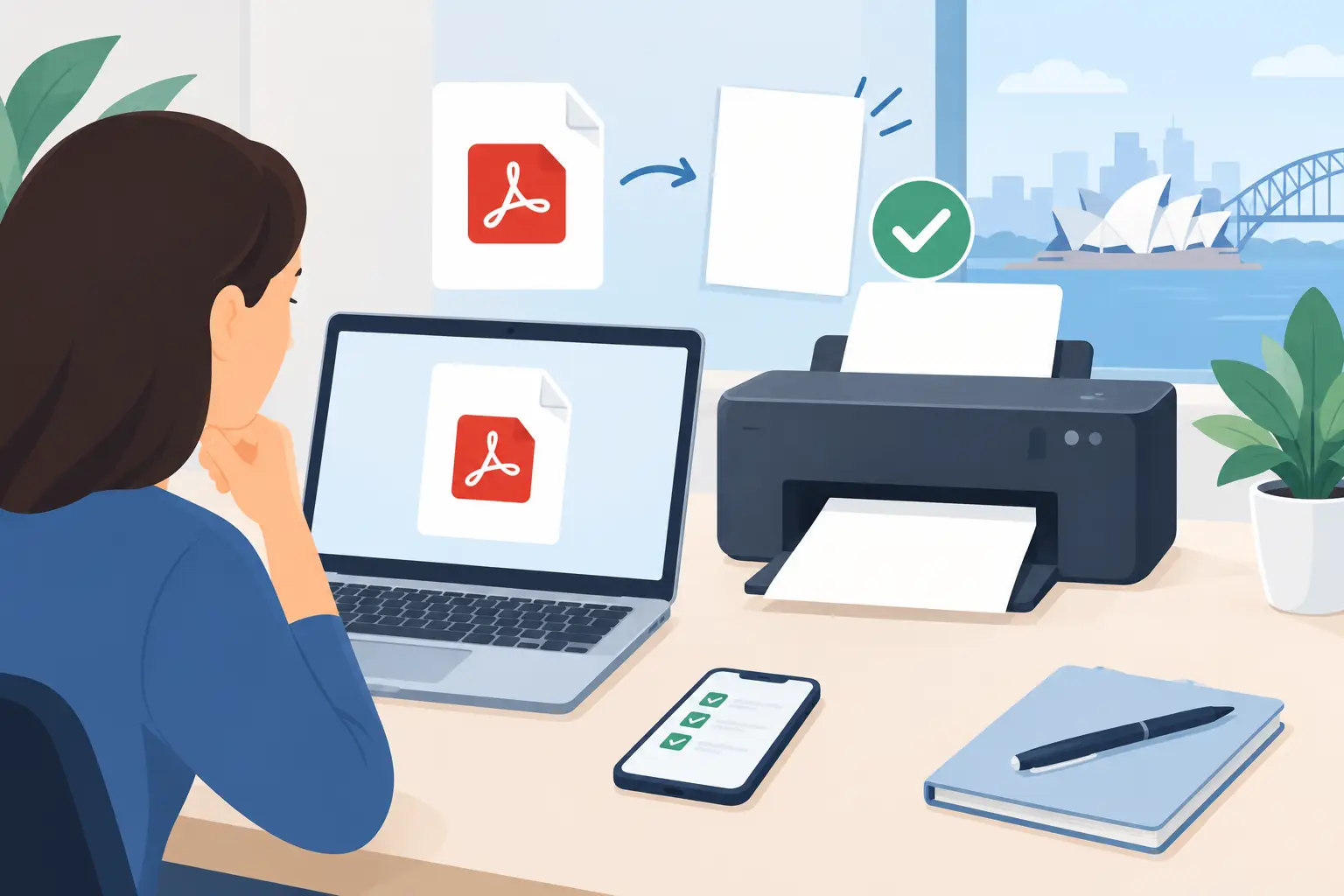
A PDF can look completely normal on screen, then come out of the printer as a blank page. It is a frustrating problem when you are trying to prepare a rental application, staff paperwork or a form that needs signing. If you are asking, why does my PDF print blank, the cause is usually not the document itself. It is often a mismatch between the PDF, the app opening it and the printer settings.
Before rewriting the form or wasting another stack of paper, work through a few quick checks. Most blank-PDF printing problems have a practical fix.
Start by checking what is actually blank
Look closely at the printed page. Is the whole page blank, or are only the details you typed missing? That difference matters.
If the entire page is blank, the issue may be with the printer connection, printer driver, print queue or the PDF app. Try printing a simple document such as a one-page word processing file. If that is blank as well, the PDF is unlikely to be the problem.
If the form lines, logo and instructions print but your typed answers do not, the issue is more likely to involve form fields, layers or the way the PDF was saved. This is common with interactive PDFs, especially where a form has been completed in one app and printed from another.
Also check Print Preview before you press Print. If the preview is blank, the printer will usually produce a blank page too. If the preview looks right but the page is blank, focus on the printer settings and driver instead.
Why does my PDF print blank in one app but not another?
PDFs are designed to keep their layout consistent, but not every program reads every PDF feature in exactly the same way. A browser preview, a desktop PDF reader and a mobile PDF app can handle fonts, transparency, fillable fields and layers differently.
Start by saving the file to your device, then open it in a different PDF reader. If you opened the PDF in Chrome, Edge or Safari, download it and try a dedicated PDF reader. If you used a desktop app first, try opening the saved file in a browser. This simple switch often shows whether the problem lies with the document or the program doing the printing.
Avoid printing straight from an email attachment or a temporary browser tab if possible. Save the PDF first, close it, reopen it and check the visible answers. That gives the app a chance to fully load the document rather than relying on a preview that may not carry every field through to the print job.
Check the print settings that can hide content
A few print settings can produce pages that appear blank, even when the PDF opens normally.
First, make sure you selected the right printer. This sounds obvious, but an old printer profile, a virtual printer or a disconnected office device can be selected by default.
Next, look for an option called Print as Image, Print as Picture or similar. It converts the page into a single image before it is sent to the printer. This can help where a printer struggles with a particular font, layered content or complex form design. The trade-off is that the print job may be slower and the text may not be quite as sharp as a normal vector PDF print.
If your PDF reader offers an Advanced print menu, check whether there is an option for comments, form fields or annotations. Some completed forms store typed entries as separate elements. Printing the document without those elements can leave you with a page that has the background but none of your work.
For a form that needs to be physically signed, make sure the page size is correct before printing. A4 is usually the right choice for Australian paperwork. Incorrect scaling generally does not cause a fully blank page, but it can cut off fields or put text outside the printable area.
Flatten the completed PDF before printing
A fillable PDF can contain a base document plus interactive boxes sitting on top. You may see the answers on screen, but some printers or PDF readers fail to include those boxes in the final output.
The practical solution is to create a flattened copy. Flattening turns the visible text and the form background into one fixed page, much like a scanned document. You can often do this by using the PDF reader's Print function and choosing Save as PDF instead of your physical printer. Open that newly saved file and check that the answers are still visible. Then print the new copy.
This approach is especially useful after filling a form online. Open QuickFill and complete your form, preview the finished document, then download it before printing. If your printer still leaves out typed fields, create a saved PDF copy through the print dialogue first and print that copy.
Keep the original editable version as well. A flattened file is good for printing and sharing as a finished document, but it is harder to change later if you spot a typo.
Fonts, layers and transparency can cause blank pages
Some PDFs use fonts that are not properly embedded, meaning the document relies on your device having a particular font available. If that font is missing or the printer cannot interpret it, text may disappear or be substituted poorly.
Layers can cause a similar issue. A PDF may contain a visible layer for screen viewing that is set not to print. This is less common with ordinary forms, but it can happen with documents exported from design, accounting or specialist business software.
Transparency is another possible culprit. Shaded backgrounds, scanned signatures, logos and coloured boxes can occasionally confuse an older printer driver. Printing as an image is often the fastest workaround because it removes the need for the printer to interpret those individual PDF elements.
If the document contains a scanned page, try printing in black and white as a test. This will not solve every blank-page problem, but it can reveal whether a colour or graphics setting is causing the issue.
Update the printer driver and clear the queue
When several documents print incorrectly, or when every PDF is blank, the printer driver deserves attention. The driver is the software that translates your document into instructions the printer can use. An outdated, damaged or generic driver can struggle with PDFs even when it prints basic documents without trouble.
Cancel any stuck jobs in the print queue, turn the printer off and on again, and restart your computer or mobile device. Then try the PDF once more. If the problem continues, install the current driver supplied for your printer model rather than relying on an old driver carried over from a previous computer.
For workplace printers, check whether the same PDF prints properly from another computer. If it does, the printer is probably fine and the issue is local to the original device, its PDF app or its driver.
If only one PDF prints blank
When other PDFs print normally, make a fresh copy of the troublesome file. Download it again from the original source if you can, or save it under a new name after opening it in another PDF reader. A partly downloaded or damaged file can still display on screen while failing at the print stage.
Check the file size too. A suspiciously small PDF, particularly one that should include several pages or scanned material, may not have downloaded properly. Do not rely on a screenshot as a replacement for the original form unless the organisation receiving it specifically accepts that format.
If the form is password-protected or has printing restrictions, the app may show it but limit what can be printed. Look for a message in the PDF reader rather than trying to work around the restriction. The document provider may need to supply a printable version.
A reliable PDF printing routine
For important paperwork, a little preparation avoids a last-minute blank page. Save the completed PDF locally, reopen it, confirm every page and every typed field is visible, then use Print Preview. Print one test copy before making multiple copies. If fields disappear, save a flattened PDF copy or use Print as Image.
General guidance only. QuickFill helps you complete PDF forms, but it is not an official government service and does not provide legal, financial, medical, tax, tenancy, migration, Centrelink, Medicare or benefits advice. Always check the official instructions for important forms.
A blank printout does not usually mean you need to start the form again. In most cases, changing the PDF app, flattening the visible fields or adjusting one print setting is enough to get a usable page in your hands.