

Why Is My PDF Not Fillable? Common Fixes
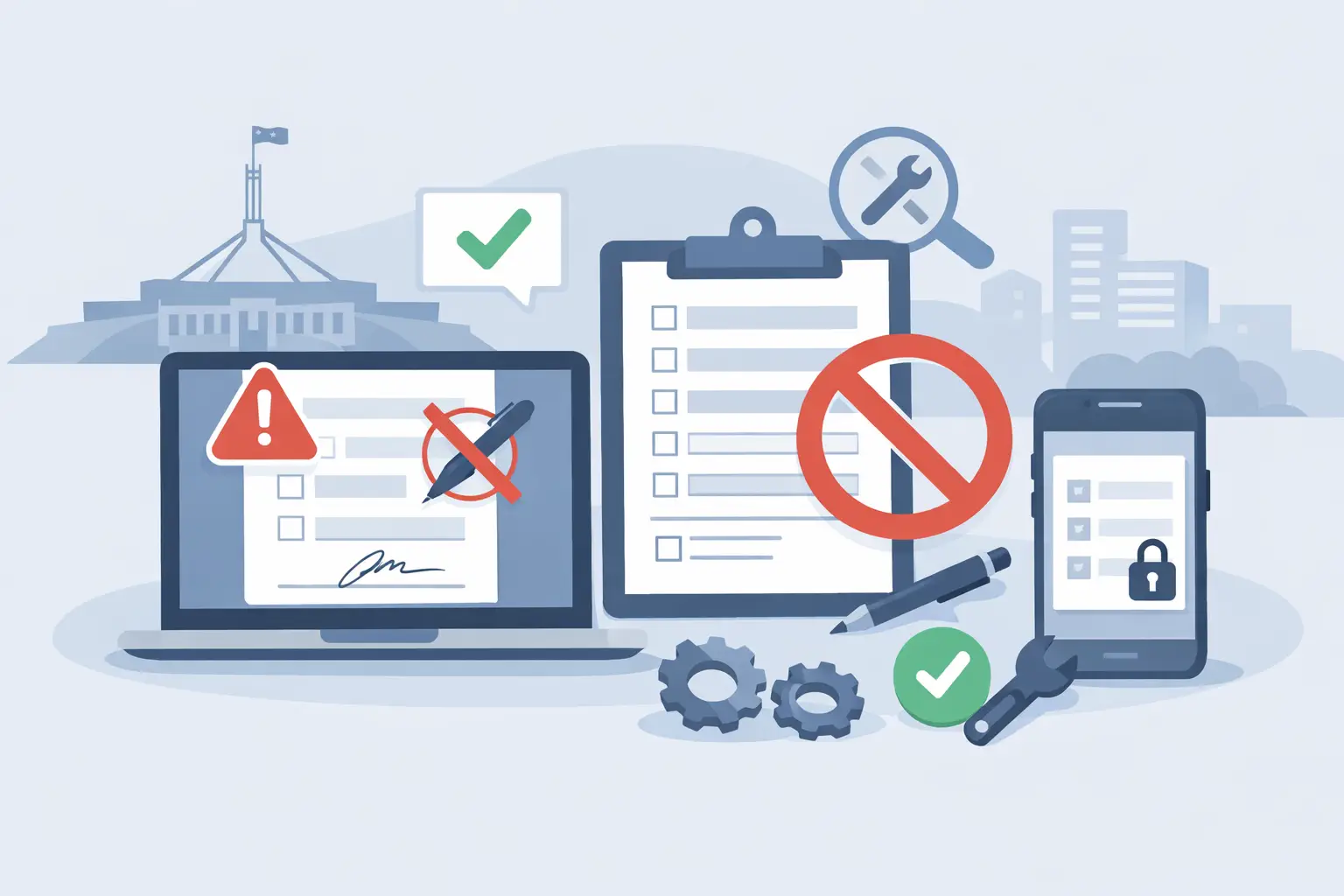
You open a PDF, click on a field, and nothing happens. No cursor, no typing, no clear message about what is wrong. If you are asking, why is my PDF not fillable, the problem is usually less dramatic than it looks. In most cases, the PDF was either never built as an interactive form, opened in the wrong app, flattened into a static file, or protected in a way that blocks editing.
That matters because a lot of everyday paperwork in Australia still arrives as PDF. Rental forms, medical paperwork, business documents, claims, registrations and council forms often look digital but behave like a scanned sheet of paper. The layout is there, but the fields are not. Once you know which type of PDF you have, the next step is usually straightforward.
Why is my PDF not fillable in the first place?
The big misunderstanding is that every PDF with boxes and lines is a fillable form. It is not. A PDF can look like a form without having any actual interactive fields behind it.
A true fillable PDF has form fields embedded in the document. When you click into a name box or tick section, the file recognises that area as editable. A non-fillable PDF is often just a fixed page layout. It might have blank spaces for handwriting, but your software sees it as an image or static text.
This is common with scanned paperwork. If someone printed a form, signed it, scanned it back, and then sent you that version, the result often loses the original fillable fields. The PDF still opens fine, but there is nowhere for your typing to go.
There is also a middle ground. Some PDFs are fillable in one program and not another. The form itself may be fine, but the app on your mobile, browser, or computer is not reading the fields properly.
The most common reasons a PDF will not accept typing
One of the most common causes is that you are dealing with a flat PDF rather than an interactive one. This happens when the document was exported, printed to PDF, or scanned in a way that removed the original fields.
Another common issue is software compatibility. Some built-in viewers, especially on mobiles or inside email apps, show the form but do not handle form fields well. You tap the page and it feels broken, even though the file might work elsewhere.
Password protection and permissions can also get in the way. A PDF can be set up to allow viewing but block editing or form completion. In other cases, the creator has locked parts of the document after it was completed.
Then there are XFA forms, which are a more specialised type of PDF form. These often appear in official and enterprise paperwork. Some viewers do not support them properly, so the form may load blank, refuse typing, or display oddly.
Finally, the file itself may be damaged. If a PDF was saved badly, partially downloaded, or altered by multiple programs, fields can stop behaving as expected.
How to tell whether the PDF is actually fillable
The quickest test is simple. Click or tap where a field should be. If the cursor appears, a drop-down opens, or a checkbox responds, the form probably has interactive elements.
If nothing happens anywhere on the page, it may be a flat document. Another clue is the look of the fields. True fillable PDFs often highlight fields, tab in order, or show a border when selected. Static PDFs do not.
You can also try selecting text in the form area. If the page behaves like a single image, that is a sign the form may have been scanned. If the PDF has visible boxes but no selectable field behaviour, it probably was designed for print first, not digital completion.
Why is my PDF not fillable on mobile?
Mobile is where this problem shows up most often. A PDF that works on a desktop can feel useless on a phone or tablet because the default viewer is too basic.
Some mobile browsers open PDFs in a preview mode that is fine for reading but poor for form filling. The same goes for documents opened directly from cloud storage, messaging apps, or email attachments. You may be looking at a quick preview rather than the actual interactive file.
Screen size also makes things harder. Tiny fields, layered elements and dense official paperwork do not always respond well on a mobile. The PDF may technically be fillable, but the experience is clunky enough to make it seem broken.
If you regularly complete forms on the go, using a tool built for typing into PDFs in the browser can save a lot of mucking about. That is the practical gap QuickFill is designed to help with - completing the PDF itself without printing and scanning it back in.
What to try when a PDF form will not work
Start with the simplest possibility: reopen the file in a different PDF tool. If you first opened it inside an email preview or browser tab, download it and open it properly. A surprising number of problems stop there.
If the file still will not accept typing, check whether it is a scanned or flattened PDF. When that is the issue, you are not fixing broken fields because there are no fields to fix. You need a way to place text onto the document rather than relying on embedded form boxes.
It is also worth saving a fresh copy of the PDF before trying again. Sometimes an attachment opens in read-only mode or temporary preview mode. A local copy can behave differently.
If permissions are the issue, there may be little you can do on your side apart from requesting an editable version. A locked PDF is not always something the end user can override, and that is by design.
For files that appear malformed or incomplete, downloading the document again can help. So can asking the sender for the original file rather than a forwarded or re-saved copy.
When the real problem is the form creator
Sometimes the answer to why is my PDF not fillable is simply that the form was not made properly for digital use. Plenty of organisations still publish PDFs that are visually clear but technically awkward. They may expect you to print and handwrite, even if the form is distributed online.
That can be frustrating, but it is useful to recognise. If the issue sits with the source file, you can stop wasting time trying random apps and work with the PDF you actually have.
This is especially relevant for regulated paperwork. General guidance only. QuickFill helps you complete PDF forms, but it is not an official government service and does not provide legal, financial, medical, tax, tenancy, migration, Centrelink, Medicare or benefits advice. Always check the official instructions for important forms.
Fillable PDF versus scanned PDF
A fillable PDF is built for digital entry. You click into fields, type, tick boxes, save and move on. A scanned PDF is more like a photo of a form. It preserves the appearance of the page, but not the interactive structure.
The trade-off is that scanned PDFs are easy to create and share, while proper fillable forms take more setup. For the person completing the document, though, the difference is huge. One supports a fast workflow. The other usually leads to awkward workarounds.
That is why it helps to think less about whether the PDF is “broken” and more about what kind of PDF it is. Once you know that, the path forward becomes clearer.
When to stop troubleshooting and just complete the PDF another way
There comes a point where chasing the perfect viewer is slower than finishing the job. If the PDF is flat, scanned, or stubborn across devices, it can be more efficient to use a tool that lets you type onto the document and prepare it for download, printing or email.
For admin staff, sole traders and anyone handling repeat paperwork, this matters. The cost is not just a few annoying clicks. It is the time lost reopening attachments, switching apps, zooming in on tiny fields, printing forms you did not want to print, and scanning them back in.
A practical workflow is usually the better one. Open the file, place your text where it needs to go, save it properly, and move on with your day.
If your PDF will not behave, the fix is rarely mysterious. It is usually a static file, a fussy viewer, or a locked document. Once you identify which one you are dealing with, you can stop guessing and get the form finished. Open QuickFill and complete your form.