

How to Sign a PDF Form Online Without Printing
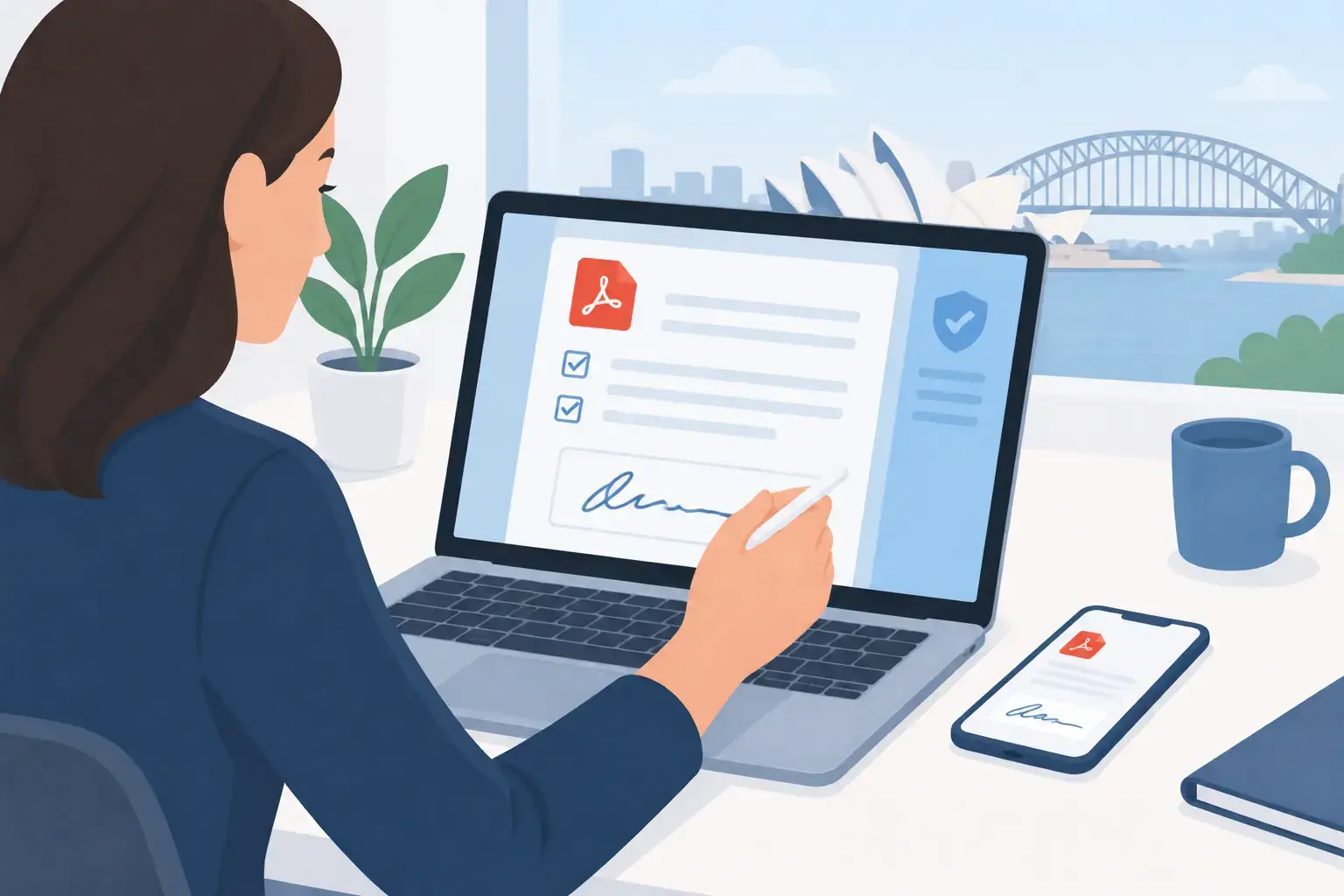
A PDF that will not let you type can turn a two-minute job into printing, handwriting, scanning and trying to make the scan readable again. Learning how to sign a PDF form online gives you a simpler way to prepare paperwork from a computer, tablet or mobile - especially when the form looks like it was made to be printed.
The basic workflow is straightforward: open the PDF in a browser-based form-filling tool, add the information requested, place your signature where the form needs it, then save and download a finished copy. What matters is choosing the right signing method and checking the form's own instructions before you send it.
Start by checking what kind of PDF you have
Not every PDF works the same way. Some are interactive forms with clickable fields, tick boxes and a signature area. You can usually select a field and begin typing straight away.
Others are flat PDFs. They may look like a form on screen, with lines and boxes ready for answers, but clicking on them does nothing. These are common with older forms, scanned documents and print-only templates. You still can complete them online, but you need a tool that lets you place text and signature boxes over the page.
A third situation is a PDF with limited editing options. That does not automatically mean it cannot be prepared digitally. Try opening it in a PDF form-filling tool first. If you can view the page, you may be able to add text and a signature as an overlay without changing the original layout.
How to sign a PDF form online
Open the document and inspect each page
Upload or open the PDF, then scroll through it before entering anything. Look for required signature areas, dates, tick boxes and sections that continue onto another page. This quick check helps avoid the common problem of completing page one, then discovering a signature line on the final page.
If the form has interactive fields, click through them and type where needed. For a flat form, use a feature that identifies blank lines and boxes, then adjust the placed fields so they sit neatly in the intended spaces. On QuickFill, the Find boxes button can spot likely blank areas on a flat form and place fill-in boxes for you to position and use.
Add your details without changing the document layout
Use a readable font size and keep text inside the supplied spaces. If a field is too small for the information you need to enter, do not squeeze it into an unreadable line. Check the form instructions to see whether an extra page or attachment is accepted, or whether the organisation has another version of the form.
Review dates, spelling and contact details as you go. This is not about deciding what an answer should be. It is simply a practical check that the words and numbers you intended to enter are visible and in the correct place.
Choose a signature method that suits the form
Most online PDF tools offer three practical ways to add a signature. You can draw it with a mouse, trackpad or finger; type your name in a signature-style font; or add an image of a handwritten signature.
A drawn signature often feels most familiar when you are completing a document on a tablet or mobile. A typed signature is usually the fastest choice on a laptop, and it can be easier to read. An image can be useful if you already have a clear signature image available, but make sure it is sharp enough to see and small enough to fit the signature line.
Place the signature in the correct area and resize it carefully. It should look like a signature on the form, not cover nearby text or drift into a date field. If the document needs a date beside the signature, add that separately rather than assuming it will appear automatically.
Preview the finished PDF before downloading
A preview is your final chance to catch practical issues: text sitting too high on a line, a missed page, a signature that is too large, or a tick box that is slightly off-centre. Zoom in on the signature section and any tight fields, then zoom out to make sure the whole page still looks clean.
Once you are happy with the layout, download the completed PDF and keep a copy with a clear file name. A name such as `completed-form-2026-11-25.pdf` is easier to find later than a long string of numbers. You can then attach it to an email, upload it through the receiving organisation's own process, or print it if a paper copy is required.
A signature on screen is not always the final requirement
Adding a signature to a PDF and meeting a recipient's signing rules are related, but they are not the same thing. Some organisations accept an electronic or image-based signature. Others may ask for a handwritten signature, a witness, a specific signing platform or an original paper document.
Read the instructions provided with the form, particularly if it is an official, financial, health, tenancy or employment document. If it says to print and sign by hand, follow that instruction. If it requires a witness, make sure the witness section is completed in the way the form specifies. A PDF tool can help you prepare the document, but it cannot determine what the receiving organisation will accept.
This is also why it is worth checking whether the form asks you to sign before or after printing. A digital signature placed on the PDF may be useful for preparation, but the stated process for that form should always guide what happens next.
Signing flat PDFs is where online tools save the most time
Flat forms create the familiar paperwork bottleneck. You can see every blank line, yet the PDF behaves like an image. Printing is tempting, but it creates another set of tasks: find a printer, write carefully, scan every page, rename the file and check that it is legible.
A browser-based editor avoids most of that back-and-forth. You can add text boxes directly over the form, move them into place and use the same process for the signature. It works whether you are at a desk, using a tablet between appointments or finishing paperwork from your mobile.
For people who complete similar forms regularly, this can also make routine administration less repetitive. Property managers preparing rental paperwork, sole traders sending invoices and admin staff handling employee documents can keep a consistent digital workflow without relying on desktop PDF software each time.
Common problems when signing a PDF online
If you cannot select a field, the PDF is probably flat rather than broken. Add a text or signature box over the relevant area instead. If the signature looks fuzzy, use a clearer image file or draw it again at a larger size before reducing it to fit.
If the form looks fine in the editor but strange after downloading, reopen the downloaded copy and inspect it before sending. Different viewers can display PDFs slightly differently, so this last check is worthwhile when fields are close together.
If the recipient says a signature is missing, confirm that you downloaded the most recent version. It is easy to make an edit, then accidentally attach an earlier file from your downloads folder. Clear file names and a final preview reduce that risk.
A practical way to keep the job moving
The best online signing workflow is the one that lets you finish the document without turning it into a printing project. Open the form, fill the visible fields, add the appropriate signature, preview every page and download a copy you can confidently send or store.
QuickFill is designed for this everyday PDF work on PC, laptop, tablet and mobile. It can help with both field-based and flat, print-only PDFs. Free to fill and preview. Pay only when you download.
General guidance only. QuickFill helps you complete PDF forms, but it is not an official government service and does not provide legal, financial, medical, tax, tenancy, migration, Centrelink, Medicare or benefits advice. Always check the official instructions for important forms.
When the form is ready, open QuickFill and complete your form - then take a moment to check the downloaded PDF before it leaves your hands.